Pages

Pages

Tutorial Manual Update Nexus 10 To android 4.2.2

Before We have make a post about the availability of the new update to Android 4.2.2 for the Nexus 4, and 7. In this morning and have been announced that the update for nexus 10 to android 4.2.2 is available. So now you can update your nexus 10 to the latest version of android. But we all know that the distribution of OTA in the world takes place in tranches and before arriving on all Nexus in the world could take a couple of days. So if you want to manually update nexus 10 to android 4.2.2 you can follow this guide.
update manual nexus 10 to android 4.2.2

below you can read my explanation how to update nexus 10 to android 4.2.2 manually. Actually the methid is similar with my previous guide about update nexus 4 to android 4.2.2. because although the model is different but its hardware and system file is almost the same. this guide is dedicated to nexus 10 owner that want to upgrade the android version without waiting for the arrival of OTA. You can just install the update directly from manual recovery.


Tutorial manual update nexus 10 to android 4.2.2

Download: Android 4.2.2 Jelly Bean from JOP40C

Manual update guide with Original Recovery

  • Download the firmware package in the above
  • Put it in the folder where you have installed the adb
  • Turn off your nexus 10
  • Connect your device via USB to your computer
  • Turn on with Power + Vol. Down
  • Click vol. down twice and enter in recovery mode (press Power + Vol below. on to display the entries)
  • Select update from adb
  • Open the terminal by dragging the folder with adb and type
    adb Sideloading eaef14432ff5.signed-mantaray-JDQ39-from-JOP40D.eaef1443.zip
  • after the update process is Complete, restart your nexus 10

and if you have installed a modded recovery you can follow this guide

  • Download the firmware
  • Put it in the memory of your device the rename the file to update.zip
  • Turn off your device
  • Turn on with Power + Vol. Down
  • Click vol. down twice then enter in recovery mode (press Power + Vol below. on to display the entries)
  • select update form sdcard
  • Install it and restart your nexus 10
Finish. Now after installing the update to android 4.2.2 on nexus 10 you can enjoy the new improvement and feature on android 4.2.2, for more detailed feature you can read here : android 4.2.2 feature o nexus 4.
If you still doubt on how to update your device you can leave your comment below.

Nexus 5: LG in talks with Google in MWC 2013

According to Korean sources, which would receive information during the Conference by LG at MWC 2013, the South Korean company is in talks with Google for even the next Nexus 5 smartphone series, now known as Nexus 5 (but it is not known whether this is its real name). Of course this is a news item that we cannot feel quite correct and reliable since the only received in that regard.
news about google lg nexus 5

The fact is, though, that a new Nexus from LG after the Nexus 4 was what we expected. Google, in fact, has always made at least two smartphone Google Experience with the same company.With HTC. Google has made the G1, and the G2 and the Nexus One, And with Samsung Google Release the Nexus S and Galaxy Nexus

After HTC and Samsung, Google have moved to LG with the Nexus 4, and everything suggests that there can be at least one more Nexus smartphone made by LG. It is not yet clear, however, whether this partnership between the world of giant web search and the South Korean company of "the good life" (Life's Good) can also expand to the tablet, for now made only from Samsungand Asus.

For now, although it seems more than we can imagine what will google release for its new smartphone. Stay to get the news update

Install Android 4.2.1 I9300XXUFMB3 For Samsung Galaxy S3

Samsung starting from the month of March should release android 4.2.1 Jelly Bean for Galaxy S 3 and today as the sign of the official firmware is released, Galaxy S3 get the first leaked firmware based on the latest major release of Android. The firmware is available for the flash via Odin thanks to a user forum of XDA-Developers.

I9300XXUFMB3 firmware for Galaxy S 3 is based on Android 4.2.1 Jelly Bean and is the System dump provided by XDA user, that deserves a lot of thanks.
Still do not know the main innovations of the firmware but according to initial reports the changelog would be composed of:
  • 4.2.1 Android – build JOP40D
  • Improved ripple effect in lockscreen
  • Lockscreen with support for widgets
  • Daydream
  • What's new in the notification Center
  • New voice commands for galaxy s3 to use
Here is the link from where you can download the file to flash.
I9300XXUFMB3 if you don't know how to flash it read how to flash firmware to galaxy s3 via odin.
SamMobile wants to point out that the firmware is not yet a final version actually has some minor bug fixes but it is perfectly usable for daily use. Take also the binary counter in "modified" and being a no brand version will not install any modems, which will remain the one already used.
To install I recommend to follow this short guide (do with your own risk)

Install Android 4.2.1 To Galaxy S3

  • Open Odin 3.04;
  • Restart the phone in download mode (Home, Power and Vol Down);
  • Connect your smartphone to your computer and wait until the connection recognized by Odin;
  • Add the PDA archive (check both put the checkmark to repartition);
  • Start the flash;
Here are some screenshot
install android 4.2.1 to galaxy s3
 If you want to know when the release of official android 4.2.1 for Samsung Galaxy S3, you can subcrive to this blog, or follow us. We will update when the official 4.2.1 is released

Swiftkey 4 Now Available In Playstore With Many New Feature

Finally the release of SwiftKey 4 was announced with many new feature, and then we kept constantly observe this predictive keyboard. And at this morning we found the welcome surprise of a large update, both the web page and the  app itself, although still not appears to have launched to all versions. By now you will be learned to know well during the two and more months of beta version. Then let's see what's new to be taken off until the stable version:

swiftkey 4 keyboard release


Here is the swiftkey 4 features
  • SwiftKey Flow: the most accurate input system in the world with a prediction of the next word
  • Flow Through Space: write all words you want without lifting a finger
  • Customizing: learn from your language and your writing style
  • Best fixes: improved language engine, and predictions in further text fields
  • The simplest Fixes: click anywhere in a Word to get a fix
  • Supported with 60 languages

Siftkey 4 Keyboard Release

SwiftKey 4 is now the most complete Android keyboard in the entire world of android smartphone.
To celebrate the launch, The company are also give a Nexus 7 and a Swiftkey t-shirt for free. To try to win you should follow @ SwiftKey on Twitter and post the following message: I'm tweeting with SwiftKey 4 to win a Nexus 7. Try Android's smartest keyboard now – http://bit.ly/swiftkey4 #swiftkey. The lucky winner will be chosen on Wednesday, 27 February. for the complete regulation read here : get nexus 7 free.

Below i show you the official video preview of swiftkey 4


Below i give you the link to download various versions of Swiftkey, remember that at this time prices for paid versions are 50% discount

For Smartphone
Download swiftkey free - buy paid version

For tablet
Download Swiftkey free - buy paid version

Thumb Keyboard Review and Download For Android Phone

Thumb Keyboard for a particular keyboard, very customizable, with ability to change theme, make changes to and save the most frequently used phrases. With Thumb Keyboard you can use up to 13 languages.

Thum keyboard also comfortable even if used on tablet, thanks to Division of multi part keys for a comfortable typing.
thumb keyboard review

Thumb Keyboard Review and Features

Thumb Keyboard is a keyboard designed for wide screen smartphone and tablet. Currently it's available on the Market the 3.02 version but today I will speak of the version 4 Beta which will be released shortly.

Thumb Keyboard 4 supports multi touch, Auto Correct, the next word prediction based on what we are writing, the shortcuts for the words that we use most often, different layout modes for smartphones and tablets, and a new integration with Android 4.1 Jelly bean.

i have tested this keyboard on Iconia TAB A500 for several days, thumb keyboard offers different layouts both for writing with two hands, both sides split the classic keyboard writing by Honeycomb. The multi-touch works fine and is very accurate, the buttons are well spaced and mistakes that are committed in normal typing are corrected. And finally we have the directional keys in a convenient location and easy to reach.

If you want to take it on Google Play Store you can take advantage of the 50% discount, at this time was provided at 0.94 euros.

To realize the thumb keyboard features you can look the at the official video:


Download
Below is the link to the Google app Play Store
download thumb keyboard

Easy Tutorial Activate Offline Voice Typing On Android Jelly Bean

One of the most interesting functions that introduced by Google within the last android Jelly Bean version, is certainly one of the offline voice typing.
Through the microphone on your keyboard you can now the text even if you don't have an internet connection

A nice step forward that make this input method much more practical and comfortable.
Although this solution may not exploit the full power available from the android jelly bean, the results are really satisfactory

Write sms with use voice command? From now you can do it. One of android jelly bean most interesting features can be identified without doubt in the offline voice typing (read list of android jelly bean feature). The ability to transcribe the words expressed by the voice, without the need for Internet connectivity is definitely a plus important: it should be emphasized, however that the voice typing only works offline after downloading the specific package for your language.

How to Activate Offline voice typing on Jelly Bean

Here's how you can activate it offline voice typing on your android Jelly Bean.
The procedure is independent from the phone model


  1. Go into the system settings of the phone.
  2. Enter language and inserting.
  3. Click on voice search.
    how to activate offline voice typing
  4. Now Click on Download ricon. VOC. offline .
    download ricon voc offline
  5. Inside the language option, click on languange that you want to install, example you choose english. tap on it. Then will begin downloading the offline data package (about 15 MB).download language data voice typing

The configuration procedure does not require additional steps.
In order to use the voice typing, within the Samsung keyboard click the microphone button and start dictating.

Unfortunately not all keyboards are supported on Google services for the voice typimg (eg Swype).
In this case you can just change it on the fly using the pull down menu in the insert mode, then select the "Google voice Typing".

Official Android 4.2.2 Full Changelog By Google

After on previous post we have posted about list of new features on android 4.2.2 that still not all of the changelog on android 4.2.2 revealed. Today Hugo Barra, the Vice President of Android product management, has announced a few ago on his Google + profile that google was updated the official changelog of Android 4.2.2 Jelly Bean, Those all includes with all system changes made since from version 4.1 to version 4.2.2 which is released a few days ago. We have make some review of new nexus 4 feature with android 4.2.2. Go to that post and you can see the system change and new feature on nexus 4.
full android 4.2.2 offcial changelog

Indirectly, however by what Hugo Barra has posted on its his Googleprofile, we can deduce that this 4.2.2 version will probably be the last release of of Jelly bean, because only now it was possible to update the changelog for this version of Android. Why not do it with Android 4.2.1 which also introduced innovations compared to Android 4.2.2? From now on there will be more news in Android Jelly Bean and aren't introduced new functions or features within the system?

The doubt is more bigger than we can expected, especially in light of the fact that, on the site Google Developers, this version was categorized as the latest release of Jelly Bean.

Of course, in full updated changelog, there are all the novelties introduced by Google in Android Jelly Bean, including Android 4.1. In order to take a look at the complete list of news aboutAndroid Jelly Bean, you can go to the following link: full android 4.2.2 changelog by google developers

Nexus 4 New Feature With Android 4.2.2 Jelly Bean

Android 4.2.2 was released a few days ago on the devices of the Nexus Series, such as Nexus 4, Galaxy Nexus, Nexus 7 and Nexus 10. In this article, i want to share with you what were the changes that google make and want to introduce in latest version of the android operating system. if you have nexus 4 and want to update to this version read my post about : how to manually update nexus 4 to android 4.2.2
nexus 4 new feature with android 422
In this post you can see a video that shows what is the new feature on nexxus 4 with android 4.2.2. Before you see the video, Below we have made some list some aspects that Google is going to change in the operating system:
  • Scroll Effect in the Gallery, introduced in place of the neon-Blue/Blue at the end of the scroll of the elements;
  • Different vibration when receiving emails from Gmail and receiving SMS: in the first case we still have dual shock function close but the individual vibrations have a much lower duration; in the second case we still have dual shock function closely, but the individual vibrations are higher than what you had in previous versions of Android.
  • Improved Fluency but not in the app drawer section regarding widgets, still suffering from loss of fluency;
  • Quick Setting of Wi-Fi and Bluetooth now allow you to activate its capabilities by conducting a prolonged pressure on them, almost as if they were of the toggle.
  • Not resolved the Bluetooth bug: still there are reports from users who are unable to connect your bluetooth headset with Nexus 4 Galaxy and Nexus. You will need an additional update to fix this bug.
  • The camera rotation: when you use the camera and rotate your smartphone, turn not only commands but is the entire interface. This is not a bug but a choice by Google. Maybe something will change in the future in this regard.
  • Debug USB now allows you to set a default device to which enable this functionality. It's a trick, for safety as the device will not allow the Debug USB boot when connected to a PC other than the one pre-set by the user.
  • Fixed the bug of the widgets in the app drawer: in the previous version of Android, when you downloaded and installed any widget, was not shown immediately in the app drawer but it was necessary to terminate the application of the Home and then restart to see and position.4.2.2 This Android bug has been completely resolved and any widget is immediately visible within the app drawer
  • Reduced responsiveness: we noticed that on  Nexus 4 and Galaxy Nexus responsiveness is slightly lowered. This is not a serious matter but it seems that the Smartphones have a touch response time slightly higher than Android 4.2.1. Even in this case, we are looking forward to updates.
Now below you can see the video summary of Android 4.2.2 on Nexus 4 that created by tuttoandroid, best regards for tuttoandroid

Google Earth, Maps and Drive update: bring bugfixes and improved performance

Finally now some bugfixes update for most popular google application have been released. A few hours ago, Google has updated its Top application, they are Google Earth and Google Drive with the changelog mainly fix the bug problem that exist on the previous version, especially for Maps and Earth. Probably there were some reports of crashes submitted by users who have been found it when he use the both app.
Different speech, on the other hand, as regards the application Google Drive, This update not only to the bug that exist but also to introduce new interesting innovations. Here is the complete list of changes that have been made with the new update. Google Drive new feature:
  • Improving performance in entire application
  • Support for streaming of video files for devices with Android Honeycomb or higher
  • Support for zoom with your fingers in the slideshow viewer
  • Bug fixes and improvements
google earth, maps and google drive update


As we have seen from the complete changelog that we have explained above, If you update google Drive you you will get many improvement with important new features that make it even more functional. If you haven't yet updated Google Maps, Google Earth and Google Drive for Android, you can do so by going to Google Play Store directly from your device or, Alternatively, by referring to the following download link :

Read how to download apk from play store if you want to download and save it as apk file

Install Sony Xperia Z Boot Animation for other Android Phone

Sony Xperia Z Boot animation are available for another smartphones and Android tablet. thanks to XDA developers now you ca install the animation into another android phone.

Whenever a company produces a new interface, the elements and files that installed on the Android operating system are regularly extracted and made available for all other smartphones. We all know that Sony Xperia Z had receibed new launcher and new bootnimation. We can say that this spny xperia z launcher design and display is very awesome, and make many another smartphone users want to get the same launcher too. But now the developers from XDA forum have successfully make the same launcher and boot animation for another device, But at this moment only available for Samsung Galaxy S3, S2, Galaxy Note 2, and Galaxy Note.
install xperia z boot animation jelly bean

Apparently the launcher and the bootanimation is not yet perfect and there are a liltr problems in the management of widgets, but the rest seems to work properly, doing a fine figure on the amoled displa, mainly because the Sony is among the most minimal and elegant on Google's mobile operating system.

Now, If you want to install Sony Xperia Z boot animation you can follow the explanation below

As usual, Sony perhaps is the best in design and display, with minimal style but very stylish as you can see from this video at the bottom of this article that show the beauty of its boot animation display.

Tutorial install sony xperia z boot animation on other deveice

With any program like Astro File Explorer, or you can replace the current Android animation with another file explorer, and don't forget to make a backup of the previous boot animation file and that to do this procedure you must have the root piermission.
The file that you must replace is located in System/media, while the zip package of the animation you can download from this link. : download xperia z boot animation = http://adf.ly/JWaCB
The small procedure should not caused high risks, but if you have no idea what we are talking about please ask specific question in the comments, so that we can give you a advice if you need it.

How to Update Manually Nexus 10 To android 4.2.2

After much rumor of android 4.2.2 leak on the internet, finally the new android 4.2.2 with JDQ39 version has made an appearance on the official Android device ( at this time we discuss about nexus 10), at this moment this latest android version still only available for nexus 10, 4, 7, and Galaxy nexus. The release was very fast for all nexus devices and the update release was less than 48 hours, The update came via OTA.
android 422 update for nexus 10

Well, then all you have to do to update via OTA is go to menu settings-> about phone/tablet-> system updates. If your device does not detect any update, you can force it to receive the OTA by following this simple guide. how to force ota update for nexus device

That is why we want to give interesting guides on this blog that will allow you to update your Nexus 10 to android 4.2.2 manually without waiting OTA update come to your country. You can just install the update directly from manual recovery.

We are confident that the update will not delay to much to arrive in our country for the entire range of Nexus, but if you do not want to wait and very curious about the Android 4.2.2 performance you can follow the guide below

Tutorial manually update Nexus 10 to android 4.2.2 JDQ39

With this guide you can manually install the new update to Android 4.2.2 Jelly Bean.
Download android 4.2.2 firmware : paste this address to your browser http://adf.ly/JUFaE

android 4.2.2 Update guide With The Original Recovery

  1. Download the firmware package
  2. Put it in the folder where you have installed the adb
  3. Turn off your Tablet
  4. Connect it via USB to your computer
  5. Turn on with Power + Vol. Down
  6. Click twice the vol. down and enter in recovery mode (press Power + Volume down on to the display  entries)
  7. Select update from adb
  8. Open the terminal by dragging the folder with adb and type :
    adb Sideloading eaef14432ff5.signed-mantaray-JDQ39-from-JOP40D.eaef1443.zip
  9. After the process complete, restart your Tablet
read also : how to root nexus 10

Update guide With Custom Recovery

  1. Download the firmware package
  2. Put it in the memory of your nexus 10. then rename it to update.zip
  3. Turn off your Tablet
  4. Turn on with Power + Vol. Down
  5. Click twice the vol. down and enter in recovery mode (press Power + Vol down to display the entries)
  6. Select update form sdcard
  7. Install it and restart your Tablet
Finish. I hope this tutorial will be bery usefull for who want to install android 4.2.2 update manually on Nexus 10.

Google Sound Search: App For Find Titles and singers on android

A few days ago Google released a new application called Google Sound Search, this is an app that no music lover can miss. Sound Search app can recognize all the lyric songs that we do listen to our device, just as like they do already on Shazam, once you've found the song just one click to open Google Play Music and buy the song or the album.

To use the app just place on Widget and you're done: when we hear the song that we want to know the title or the singer just tap the widget and after a few seconds we will have the answer.
what is google sound search


If you remember, this song recognition service was already presented by Google along with Jelly Bean, initially called Google Ears. Unfortunately google Ears has not been integrated into final firmware and remained on Play Store, you can download it free without any charge. Even now with the new name, Sound Search is not yet available in all country, that's why we provide you with the link to the manual installation

download music lyric for android


Download Google Sound Search
Important : you must have the check on "unknown sources" in order to install applications that downloaded apart from the Play Store. Found this item in settings-> Applications in Android 2.2 and 2.3 versions, while in Android 4.0 or higher can be found in settings-> Security.

Easy Tutorial Manual Update Nexus 4 To Android 4.2.2

After all of the other devices of the Nexus, Finally the Nexus 4 receives the Android 4.2.2 update officially via OTA. In this post you can find how to update it manually if you can't find any update notification on your phone. The new improvement to the new version of the operating system you can read on my previous post : New Feature on Android 4.2.2 .

Besides the classic and new improvements in Android 4.2.2, in particular for the Nexus 4 this update removes the LTE network, actaully this smartphone was equipped with radio, so was capable to connect with LTE network. Until Android 4.2.1, though it was possible to enable LTE connectivity by following the simple steps, so Google decided to removes the LTE network with this new update.
manually update nexus 4 to android 4.2.2

To check for new updates, simply go into the Settings of your smartphone, select Phone Info and system updates. In case there be notified any update, you can follow the Guide to force the OTA update. How to Force OTA update on nexus device

If after several attempts you can't find any updates notification and want to update your Nexus 4 to Android 4.2.2, then you can follow the step by step guide in below.


How to manually update Nexus 4 to Android 4.2.2

Requirements
Android JOP40D 4.2.1


For those who have a Custom Recovery
  • Download the update file : download JOP40d
  • copy the file in the memory of Nexus 4
  • go to recovery
  • Select "install zip from sd card" and then "choose zip from sd card"
  • Choose the file you just copied, and confirm
  • wait until the end of the installation and reboot


Update to android 4.2.2 with Recovery Stock (via ADB)

  1. Download the update file : download android 4.2.2 JOP40d
  2. You must have installed the ADB (download ADB)
  3. copy the update file in ADB
  4. turn off the nexus 4 and start it by pressing and holding the Volume down button
  5. then fastboot menu will appear and on the start button, press and hold the Volume up key until you see the Recovery menu
  6. Now you can leave the Volume up button and press the Power button to enter in Recovery
  7. Now you will see an Android with exclamation point and you must press the Volume keys on + Power
  8. Select "apply update from adb"
  9. connect your nexus to pc with USB cable
  10. Open a command prompt and go to the folder where you placed the update file
  11. type the following command:
    adb Sideloading de8b8d101614.signed-occam-JDQ39-from-JOP40D.de8b8d10.zip
  12. at this point you will see a progress bar that will send the update on nexus
  13. now the update process will start
  14. When finished, restart


Enjoy
If you update your Nexus Android 4.2.2 4, be sure to tell us your first impressions. Ok, i hope this tutorial will help you to update your phone. You can leave any question on comment are.

Update Adobe Flash Player 11.1.115.47 version For Android ICS And Jelly Bean

Thanks to XDA forum, today we can show you how to install latest adobe flash player on android jelly bean and ice cream sandwich, Also to download the new updated version of Adobe Flash Player, which reaches the 11.1.115.47 build number. In fact, until a few days ago, it was only available 11.1.115.20 version, and have not yet known the improvements that improved from this update.

adobe flash player update for android

Therefore, despite the fact that Adobe has decided not to make available Adobe Flash Player for devices with Android 4.1 Jelly Bean, in this update is still available (not on Play Store) for those devices that have aboard any version more higher than Android 2.3 Gingerbread.
So, Adobe Flash Player is compatible with all devices with Android, ICS and Jelly Bean, including, although Adobe does not recommend installing on this type of device.
If you are using arm v 6 you also can read install android flash player on armv6

Flash Player Update For Android Ice Cream Sandwiches

If you are looking for the Flash Player Play on Google won't find it because it was hidden, but if you click on the badge below you won't have problems to install/upgrade:
update flash player for android

Adobe Flash Player For Android 4.1 Jelly Bean

One should perform the installation manual:
  1. Download Adobe Flash Player 11.1.115.47 from the official website from this LINK .
  2. Copy the file you just downloaded to the device.
  3. Start the installation by using any file manager.
  4. Start your Web Browser.
  5. Go into Settings and Activate the plugin ("on demand" or "always on").
  6. To verify that Adobe Flash Player is properly installed go to adobe site and check that the animation is played.
Note: you must have to check on "unknown sources" in order to install applications that downloaded from Google Play. Found this item in setting-> Security

First impressions from users that have been update flash player in his android device to 11.1.115.47 version have noticed a slight improvement performance in the content loading while browsing.

How to Root Samsung Galaxy S3 With Android 4.1.2

Are You want to have root access on Galaxy S3 I9300 with Android 4.1.2 and you don't know how to do it? Don't worry! After read and do this guide you will be able to have root permissions in a very short time.

Now available Android 4.1.2 Jelly Bean for the Samsung Galaxy S 3. The version number is I9300XXEMA2. If you want to update to this version read : update galaxy s3 to android 4.1.2 . Tt this moment we still don't know the full changelog although in recent weeks Samsung has posted several videos where indicated the features in this new firmware. All those applications that enhance the experience of using the phone like:

  • Multi-windows: the ability to open two applications simultaneously by dividing the screen into two
  • Play and Popup Popup Browser: opening in over-impression video and internet pages
  • Samsung S-Cloud: for handle on "cloud" online your own files
  • New widgets

root galaxy s3 on android 4.1.2

Prerequisites for the Root of the Galaxy S3:

  • USB drivers for Samsung Galaxy S3
  • USB debugging mode enabled
  • Backup your data
  • Android 4.1.2 Jelly Bean
  • Upper battery at 80%
  • Note: android phone guide not responsible for damage caused to your smartphone. Each procedure is at the risk

Procedures for Root Galaxy S3 I9300 with Android 4.1.2

The first step is to take download Odin v 3.07 and CF-Root package and save it within your personal computer. Now turn off your Galaxy S3 and start it in download mode by pressing the Volume down keys, Home and ignition key. In the screen that appears, confirm it by pressing the power button.

Now open ODIN and connect Samsung Galaxy S3 to the personal computer. Make sure to be recognized correctly and press the PDA in ODIN. Select CF-Auto-Root-mo-moxx-gti9300.tar.md5 and press the Start button.
During the procedure does not disconnect for no reason the Galaxy S3.

At the end of the procedure to root the Galaxy S3 will restart and finally enjoy the root permissions onAndroid 4.1.2.

How to increase internet connection speed in Android Phone

Want to increase yout internet or network connection speed in your android phone? If your connection speed makes you upset, Below i will explain completey the tutorial so you can at least improve the network connection speed.
Free on Android devices is not always optimized at best and even if we are under a good 3 g coverage it may happen that the downloading of data from the network is really slow. This guide will teach you step by step how to speed up 3 g coneection on your Android smartphone or tablet.
how to increase internet speed in android phone

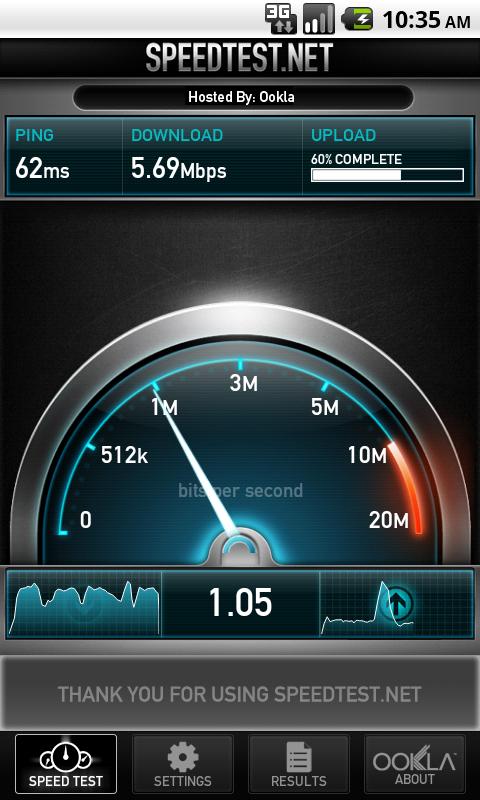
The first step you should do is download the applications Speedtest.net, 3 g/4 g Speed, Script Manager from google play store. Now download the contents of this page and save it as a .txt file with name "3GTurboCharger_Installer_Update_3_test_11.sh.txt". Put this file on the memory card of your Android device. Now do 5/6 3 g speed test with 3 g/4 g Speed.

Before carrying out the test remember to disable connections to wi-fi. Now we open the application 3 g/4 g Speed and the Central form we choose the value 12/28/7 – max speed. Scroll down the page and choose the value Down speed increase (slow upload). Now we press the Apply button to confirm. At this point reboot your Android device to make changes to the connection.
Start the Script Manager app and head on the .txt file that you saved previously. This file has the Super user icon, a window will open where you have to select On. Now run the script with the run button.

The application will show you the written automatically and when will ask a numeric value (from 1 to 8) pick 3 (which is fastest). The new request is to insert a number please enter 3 again
Restart your device to make effective changes

Ok, thats it. After you done the tutorial above your internet connection speed will increase.

Tutorial Manual Update Nexus 7 Wifi To Android 4.2.2 JDQ39

Android 4.2.2 finally arrives in England and europe via OTA. So now if you have Nexus 7 Wi-fi read the following tutorial to update Nexus 7 to android 4.2.2. Actually at yesterday there came the notification of the arrival of the new version of android. Throughout the night, so most of the Nexus 7 wifi europe should have received the update to android 4.2.2 jelly bean, maybe this is the last version for jelly bean !
update manually nexus 7 wi-fi to android 422

The update is expected also for Nexus 4 everywhere and, in Italy, for Galaxy Nexus yakju and Nexus 7 with 3 g module. If you are still owners of a Nexus 7 wi-fi version only then go into settings-> information about tablet-system-> updates > check now.

If there is anything you try to follow our Guide how to force OTA update, valid for any Nexus device although in that tutorial speaks exclusively for Galaxy Nexus.

As we have already pointed out, in the official changelog we said only of performance improvements and bug fixes while we managed to find several more concrete changes. here is some of android 4.2.2 changelog :
  • Data protection from theft of the device with USB debugging
  • Download notifications with seconds remaining
  • Quick Settings that support press and hold
  • New sounds for low battery and wireless charging
  • New animations for the Gallery
    • In particular, we noted the lack of blue glow at the end of the .ICS, replaced by an animation that acts on the previews.
To read more detail go to previous post : list of android 4.2.2 feature
But if you still want to flash android 4.2.2 manually on nexus 7 Wi-fi you can read the step below


How To Update Manually Nexus 7 Wi-fi To Android 4.2.2 JDQ39 4.2.2

With this guide you can manually install the new update to Android 4.2.2 Jelly Bean for Nexus 7 Wi-Fi.

Download Android 4.2.2 JDQ39

Guide If you are using the Original Recovery
  • Download the package over
  • Put it in the folder where you have adb
  • Turn off your Tablet
  • Connect it via USB to your computer
  • Turn on with Power + Vol. Down
  • Click twice vol. down and enter in recovery mode (press Power + Vol below. on to display the entries)
  • Select select update from adb
  • Open the terminal by dragging the folder with adb and type
  • adb Sideloading 6ece895ecb23.signed-nakasi-JDQ39-from-JOP40D.6ece895e.zip
  • After Completed, restart your Tablet


Guide If you are using Custom Recovery
  1. Download the package over
  2. Put it in the memory of Tablet renaming it update.zip
  3. Turn off your Tablet
  4. Turn on with Power + Vol. Down
  5. Click twice vol. down and enter in recovery mode (press Power + Vol below. on to display the entries)
  6. Select update form sdcard
  7. Install it and restart your Tablet


Congratulation Now you have successfully flash android 4.2.2 jdq39 into you Nexus 7 Wi-fi. After try this we also accept your comment and opinion about this rom.

How To Flash Official Android 4.2.2 To Galaxy Nexus

If you have a Galaxy Nexus, now you can update your device to the latest version of android 4.2.2 Jelly Bean. To update it you can't do it through OTA update if you don't force it, or you also can do it by flash it manually. If you are still new in android modding or customization don't panic, On this post i will show you how to flash android 4.2.2 To Galaxy Nexus. You just need to read it carefully and prepare all the requirements

Recently Google have been released the latest android version, and at this time is still in jelly bean with 4.2.2 version. After releasing android 4.2.2 updates via OTA for galaxy nexus and nexus 7, Google also releases the Factory Image of this version. The Factory Image are complete images of your system that may be useful to completely restore your Nexus to factory settings, making them return to the stock as Google Inc made them.
flash manual galaxy nexus to android 4.2.2

Read First
This procedure can be very usefull especially when, for example, you customize too much with your device, including root permissions, custom recovery custom rom, etc, and you would need or simply desire return it to stock. Installing the Factory Image, however you will lose all data on your device, so you should make a backup before you perform any necessary work.

How To Flash Official Android 4.2.2 On Galaxy Nexus

Below i have wrote complete instruction how to flash or install Android 4.2.2 JDQ39 with yakju version to your device

IMPORTANT
this guide is also valid for rebrand your galaxy nexus from operator and make it pure from google in all aspect, so you don't need wait the update from operator which is usually need more time than google version


Installation Process

  1. Download the factory image from developers.google
  2. Extract the contents in the same Platform Tools folder of Android SDK (in case you haven't install it, download android sdk)
  3. connect your galaxy nexus to the pc with usb debugging
  4. Open a command prompt and go to the folder where you extracted the files
  5. Type the following:
    adb reboot bootloader
    fastboot flash boot loader [full name of the bootloader file without bracket.img]
    fastboot reboot-bootloader
    fastboot flash radio [full name of the radio file without bracket.img]
    fastboot reboot-bootloader
    fastboot-w update [full name of the image file.zip]
    fastboot reboot-bootloader
    fastboot oem lock


Ok thats it for the guide to install android 4.2.2 with JDQ39 firmware version on Galaxy Nexus. Hope wthis tutorial will help you. See you in another android smartphone guide

List Of New Features On Android 4.2.2

As we know, Android 4.2.2 has been released yesterday by Google for the range of Nexus device. However, there still will available update release for Galaxy yakju Nexus, the Nexus 7 Wi-Fi + 3 g and for the Nexus 4, and we're sure will arrive within a short time.
But what is it the actually new changes on Android 4.2.2? There was only a bug fix or is there more on this update which is the file size is about 50 MB? Now i will explain in detail the complete changelog of the new version of Android 4.2.2.

What's new in Android 4.2.2 

Below you can read my explanation of what is the new features and what's new on android 4.2.2

Data protection from theft on the device with USB Debugging


list of new features on android 4.2.2

Now when you connect your device via USB to the PC, both devices communicate using an RSA key that your device with Android 4.2.2 onboard provides uniquely to your PC. You can choose to allow only once always the USB Debugging, which cannot be executed when you connect your device to a different PC. In this way, in the event that unfortunately our tablet or smartphone there is stolen, you will not be able to send the information and user data. It is a very simple function but equally useful.

Download notifications with seconds remaining


appear download remaining time

As you can see from this image, now when you download any files, will appears the percentage of download, also the amount of time remaining until it is completed. Many might think that this could be a function on the Google Play Store updated to the new version of Android, and this is not the case. The Play Store version is still the 3.10.10, where by Android developers have just made a change to the operating system level.

Quick Settings now as the Toggle


new quick setting on android 4.2.2

Similar with android 4.2 new fetures, which is first introduced the Quick Settings, or buttons in the notification bar to go in the settings of a particular feature and activate or deactivate it. It was not possible, up to version 4.2.1, enable or disable functionality simply by selecting them, something that now with Android 4.2.2 you can. Both the Wi-Fi and Bluetooth, now can be activated directly from the notification bar by a long press on its Quick Setting, as is the case in many custom ROMS and some UI customizations to other companies.

New sounds for low battery and Wireless charging


Were also introduced new sounds for the Nexus 4 that are played when there is a low battery and when we rest our device on a wireless charging base, especially when the battery is below 95%.

Call Settings
It was removed the option to view the entire list of calls in the phone application, you do not yet know why. Perhaps, and looking forward to receiving confirmations we update, The Android  4.2.2  default already show it.

New animations for the Gallery
The Gallery has been improved with the new version of Android and in particular were introduced of new animations that make the application faster than before. Even in this case expect to receive the update, after which there will provide much more information about it.

Besides these improvements on android 4.2.2 that visible to the user's eye, there are many other Android developers operated that aimed to solve some bugs, such as that concerning the connection with the Bluetooth headset that, however doesn't seem to have been solved right at all.
Here, then, we reported the link that redirects to the official page of changelog of the developers in case you're interested. Android 4.2.2 changelog

Android 4.2.2 OTA Update For Nexus Galaxy Nexus, Nexus 7 And Nexus 10

A few hours ago Google has started the official release of the new version of Android for Nexus, nexus 7 and nexus 10, The version is named with android 4.2.2. Is not yet clear what hides behind this update in addition to the classic bugfix like we have talked about, such as related to Bluetooth bug problem.

In fact, this update file size is 47.6 MB and, from the description in the download screen, reads simply that there is an improvement in performance and stability. In any case, form the file size, so we don't think it's a full update which introduces many new features, although these are not yet well known Update. This android 4.2.2 update is released for Galaxy Nexus, Nexus 7, and Nexus 10 but not for Nexus 4, but we are sure that soon arrive on Nexus 4.


Force OTA Update To Android 4.2.2 On Nexus 7 And Nexus 10

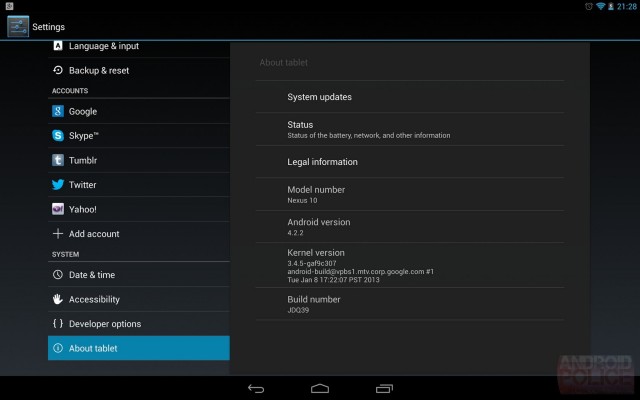
This Android 4.2.2 update is now characterized by 5 letters and no longer with 6 letters. It has gone from build build JDQ39 to JOP40D with the kernel which passes from version 3.4.0 to3.4.5 version only on the Nexus 10. We expect the same update come soon also on the Nexus 4 with the same kernel on Nexus 10. Galaxy Nexus and Nexus 7, instead, remain with the same kernel, as you can see from the pictures below.
android 4.2.2 update for nexus 7 and nexus 10
force ota update to android 4.2.2 for nexus 7 and nexus 10

In order to check if on your Nexus contains the update via OTA for Android 4.2.2, what you have to do is go to settings -> about phone/tablet -> system updates and verify if you are notified of the new update. In cases where this is not yet detected, then you can try to force the OTA update by following this simple guide written for Galaxy Nexus but is valid for any Nexus device.
Force OTA update On Galaxy Nexus Or How to Manual flash android 4.2.2 to galaxy nexus
If you upgrade to Android 4.2.2, do not forget to tell us your first impressions of use.

Samsung Galaxy S3: Surfaced official wireless charger

Last year there is an official announcement for the Samsung Galaxy S3 a wireless charger which is named as accessories. Over 9 months have passed since that time and now appears the first sign of such a charger. And on my previous post i have said that wireless charging kit are in mass production
samsung galaxy s3 wireless charger

Wireless Charger For Galaxy S3 Has Been Approved By FCC

At the U.S. regulatory authority for communication devices, FCC, a Wireless Charging Pad for the Galaxy S3 has been tested and approved. The pad itself is operated with 19 volts 0.5 amp. To the load time of the Smartphone itself, nothing is known, since the audit reports only on the pad. However, the charger has input from 9.5 watts, which is about nearly double the performance of a 1A of charging cable. Therefore, the charging time of the S3 should be more efficient and take more short time.

official announement of galaxy s3 wireless charger


The Ladepad itself is Qi compliant and you can download also other smartphones such as nexus 4 and Lumia 920 thus. Since this accessory comes so late on the market, the question is whether this wireless charger points out directly or not on the Samsung Galaxy S4, which probably will be Officially Presented this month at the MWC. Samsung could go along with the current trend and directly with integrated Qi charging function to equip the Galaxy S4.

wireless charging pad

When will the device on the market and whether it will find his way at the time to Europe is not known yet. Sure, At the latest MWC we will know more.

How To Perform Hard Reset On Samsung Android Phone

In this guide i will explain how to perform hard reset on your samsung smartphone using factory data reset. This method is very simple and easy to perform because it can be made directly to the phone with turned on condition and is a procedure of the android operating system.

What is Hard Reset ?
But before i will give you some explanation. When you want to do a hard reset, do a wipe, format the phone or perform a factory reset it always refers to the same exact thing. Usually the more correct term and used in the world of telephones is to hard reset.
This procedure can return a device to original factory settings, erasing all the system settings, the programs installed by the user and data from various databases such as sms, email, notes, etc.

The reasons that can push to make the factory reset are different: return to an initial situation completely clean, fix some problems related to the stability of the operating system, and many more.
how to perform hard reset on galaxy s
perform hard reset on samsung galaxy s

How To Do Hard Reset On Samsung Galaxy Smartphone

Attention. Performing a Hard Reset will clear all your data on your phone (phonebook, sms, applications, etc) and it is also irreversible. To make a backup you will can read our guide tutorial create nandroid backup
  1. Enter to the settings menu.
  2. If you have Gingerbread enter to the Privacy menu, if you use Ice Cream Sandwiches, come in Backup and recovery.
  3. Click on Reset to factory data
  4. If you want to format the internal memory or sdcard enable the special voice, otherwise start the procedure to hard reset by clicking on reset phone.
    If you set a lock pattern or pin for access to the telephone you will be prompted for a confirmation that will serve as an additional security measure.
  5. The phone will restart on its own and then enter in recovery of android and complete the Hard Reset procedure.

Here's a video guide to perform the hard reset using factory data reset.

Get Back Warranty On Galaxy S3 Or Galaxy Note 2 After Rooted

In this guide today i will explain how you can restore the warranty of Samsung Galaxy S3 and Galaxy Note 2. In the case where the warranty have been carried out by modding, root or super user, installing new kernel, and installing custom recovery may cause you void your phone warranty .
In particular, this guide is aimed at those who have installed in your phone:
  • custom rom
  • modified kernel
  • Cf-Root
  • root or recovery change

Warning
  • Before proceeding, we recommend that you backup your personal data (Sms, contacts, files, internal memory, etc.) and nandroid backup Read how to make nandroid backup
    The warranty repair procedure may delete the personal data contained in your phone.
  • Before start the process to restore the warranty read entirely the guide below and then follow it step by step.

How to get back warranty on Samsung Galaxy S3 or Galaxy Note2

Step 1
The first step will be to restore the custom binary counters and system status using Triangle Away (to use it requires root permissions).
Attention : do not abuse the tools because it acts on the bootloader on your phone. To date, however, no negative experiences were detected.
  1. Download on the phone the latest version of Triangle Away
    On the Xda forums is this apk is free version (annex TriangleAway-vX.XX.apk). Install it by clicking on it.
  2. Start the app and remember to grant the rights to root (a popup will appear later).
    If prompted, confirm the additional data download (6 MB).
    how to restore warranty for galaxy s3
  3. Start Triangle Away.
    The first time, you will be asked if the device has been properly recognized.
    If so, confirm by clicking Continue.
    remove triangle exclamation on galaxy s3
  4. Now Click the button Reset Flash counter and confirm by clicking continue.
    binary counter reset for galaxy s3
  5. The procedure automatically reset the binary counter.
  6. In some situations, the device may restart in a special mode.
    If this is your case, to proceed to the setting the counters to zero press the Volume up
    Otherwise, to cancel the operation, press the volume down button.
    Caution : do not turn off or reboot the phone by use power button.
    triangle away galaxy s3   Guida completa al ripristino della garanzia sul Samsung Galaxy S3 e Note 2
Step 2
After reset the binary counter, now we will flash Original samsung firmware with Odin, this will erase all traces of custom rom, kernel or recovery.
  1. Download the original Samsung Firmware that you match with your model. For Galaxy S3 - for Galaxy note 2.( i will attach the link soon)
    Important: If you have installed at least once (even in the past) a Jelly Bean 4.1.2 firmware, always use the same version (no Jelly Bean 4.1.1 or earlier).
  2. Start odin (download latest odin) and on PDA field choose the firmware extracted from the downloaded archive (the final extension is displayed in the field must be .tar or .tar.md5).
    restore warranty for galaxy note2
  3. Enter to download mode
    By phone off press the buttons VOLUME down +HOME + POWER and wait until you'll find yourself within the following screen.
    Confirm by pressing the Volume Up button.
    enter download mode on galaxy s3
  4. Connect your smartphone to your pc via usb and, after recognized by odin (the field ID: COM will turn green), click Start.
    flash official firmware on galaxy s3
  5. You will now install the official firmware and discarded every firmware track of custom modding.
  6. When finished the phone will reboot automatically.
    If your galaxy note 2 or galaxy s3 stuck in the start-up phase (more than 10-15 minutes), perform a hard reset by recovery: read how to do hard reset.

Step 3
The warranty repair procedure has not yet ended.
  1. Turn on your phone, go into Settings > device Info > State.
    If the device entry is normal, you can skip this step.
    But if it shows CHANGED or "Modificatio" as in the following image, you must continue this step
    device status are in changed
  2. To change the status from changed to Normal, you must perform a factory data reset (hard reset).
    From the menu Settings > Backup and restore , click Restore factory data.
    factory data reset on galaxy s3
  3. On the next screen, confirm by clicking on reset the device and wait until the end of the formatting.
  4. Make sure that the counters in download mode are all cleared and the status of the device is normal
Step 4
For more security, please also check if the CSC is present in the original firmware of the phone.

The procedure of warranty repair For Samsung Galaxy Note 2 Or Galaxy s3 is now completed.
You will not be able to be traced back to any modding operations carried out on the phone.

Tutorial Root Samsung Galaxy S2 on Android 4.1.2 I9100XWLSD

After Samsung galaxy s2 receive the update to android 4.1 Jelly Bean which is with I9100XWLSD firmware verison. In this guide i will give you tutorial how to root Samung Galaxy S2 with android 4.1.2 I9100XWLSD using siyah kernel. To enable the root permissions on the one of the samsung flasgship phone there is a siyah kernel that will hel you, the safest and most reliable method existed at the time.
I describe that the term of root android world refers to the ability to obtain root privileges, example linux systems administrator, to grant applications that require them.

Read First
  • Update Galaxy S2 To android 4.1.2 with I9100XWLSD firmware version
  • Root will void your warranty
  • First read the entire manual and follow the step exactly with i described below.
  • Make sure that your pc is installed the galaxy s2 driver (just get Kies ).
  • root the Galaxy SII will not delete your data,
  • but it's always recommended to do a backup. Read how to perform nandroid backup
  • Download odin : paste to your browser http://adf.ly/8BODT
  • download siyah kernel http://adf.ly/ItT6T
  • Do with your own risk

Here is the procedure of root process
  1. If you not already have odin on your computer, download Odin and extract the executable in C:\.
  2. Now download the kernel, after download Run Odin and on thePDA field enter the .tar file siyah that you just downloaded.
  3. Odin should be configured as shown in the following figure, then you don't need to do anything else.

    tutorial root galaxy s2 jelly bean I9100XWLSD
  • Put your phone to Download Mode the and connect it to your pc with the usb cable.
    Wait until the phone is recognized by odin (see image below).
    Otherwise try closing and reopening Odin back and Download Mode your phone.
    root galaxy s2 on android 412 with siyah kernel


  • Start the root procedure by clicking the Start button. The phone will restart on its own and you can detach it from your pc.

  • Finish, now you have successfukky obtained the root access. As confirmation you will find inside the applications menu two new programs: Superuser or SuperSu


  • To delete the root you just need to flash the stock firmware, then the root access wil be removed.

      Monitoring Traffic Information With Verkehrs Android App

      Since the Android phone application is developed continuously, it is convenient if it can delivers traffic information immediately to your phone. The VerkehrsApp makes this possible. This application collects current traffic information from users, police or building authorities, the app prepares and send them via push service directly on the mobile phone. The whole thing in practice looks like, we have looked at once. This is the android apps for monitoring traffic jam

      monitor traffic jam with android app

      Monitor Traffic Jam with Android Verkehrs app

      Traffic reports are displayed in a list, labeled such as construction, accident or speed cameras. The list can be filtered according to the areas of Bavaria, Bremen, Hamburg, Lower Saxony, and Saxony including these cities. When clicking on a list item, there are more information to each message like distance from your own location, message time, maximum speed, and so on.

      The user can show the hazard area on a map and then specify whether or not the message is still relevant. The message list is unfortunately risk type, or time or date. A sorting option is desirable here.

      Paid Push Feature

      Also push message can be expanded again by speed cameras, accident, traffic jam, respect and site, as well as for regions and cities can also push messages. The first 14 days of the push function is free of charge and the usability is not automatically extended. Who still want to use this function, will pay a six-month amount of 1.59 euros. Without push capabilities, messages can be manually updated.

      The push function for individual districts even when app switched off works to save battery. That so far still not for all regions in Germany a push service is offered, is according to New press multimedia Ltd. of missing moderators and cooperation partners in these areas.


      Report hazards
      The advantage Of this app users can report hazards according to the preceding criteria and complement with a place on the map, a comment, his nickname, a photo, and other details, depending on the source of danger. To what extent is the app of use and hazards is widely collected, also always depends on the activity of app users.


      Download
      To download the Verkehrs App you can directly download it from google play

      Ease of use
      Overall, everything there, where it is believed it is no need settling in period, to navigate to inside the VerkehrsApp. This app were tested on a Star B79 Android 4.0.3 (ice cream sandwich) and runs very quickly.

      Conclusion
      On the unordered and to sort representation of messages in list view and the remaining regions within the push function, the VerkehrsApp is a successful and expandable Android application for monitoring the traffic information.