Pages

Pages

Download Samsung Galaxy S 3 Stock Firmware Collection

Here i will share some my Samsung galaxy s3 stock firmware collection. this many strock firmware with different country, so just choose which one that will match with your galaxy s3. and match with your country. this firmware is based with Android 4.0.4 Ice Cream Sandwich. We know that today galaxy S3 become very popular. Just in tow months after it released on mei 2012 it has sold out for more than 10 million device. so just enjoy this ROM that i share today.

download official stock firmware for galaxy s3
password : tutorialfor-android.blogspot.com

DOWNLOAD Base Firmware: I9300XXBLG8 (4.0.4)
Country: United Kingdom
Modem: XXLG8
CSC: OXABLG8
Carrier: Unbranded
Region Europe
Build Date: 26 July 2012
Change List: 928452
Separate Kernel: Download (.TAR)
Separate Modem: Download (.TAR)

DOWNLOAD Base Firmware: I9300XXBLG6 (4.0.4)
Region Europe
CSC: OXABLG6
Build Date: 20 July 2012
Modem: XXLG6
Country: United Kingdom
Carrier: Unbranded
Change List: 928452
Separate Kernel: Download
Separate Modem: Download

DOWNLOAD Firmware: I9300XXBLFB (4.0.4)
Build Date: 26 June 2012
Carrier: Unbranded
Modem: XXLFB
Region Europe
Country: United Kingdom
CSC: OXABLFB
Change List: 782020

DOWNLOAD Firmware: I9300XXALF6 (4.0.4)
Region Europe
Build Date: 11 June 2012
CSC: ITVALF1
Country: Italy
Modem: XXLF5
Carrier: Unbranded
Change List: 705505

DOWNLOAD Stock Firmware: I9300XXALF2 (4.0.4)
Region Europe
Country: United Kingdom
Carrier: Unbranded
Build Date: 5 June 2012
Modem: XXLF2
CSC: OXALF2
Change List: 671647

How to Flash Official Firmware on Galaxy S3:


  1. Extract the firmware that you have download from the link above
  2. Open the included Odin, you can download latest odin on that link.
  3. Then Turn off your phone
  4. change your galaxy s3 into Download MODE (by pressing Home + Volume Down + Power)
  5. On Odin, on PDA block, Click PDA and select *.tar.md5
  6. Then click START to start the flashing process


Finish. Install Stock firmware on your galaxy s3 will also unroot your phone, if you have root it before. so it means it will also bring back the warranty of you phone. hope be usefull, enjoy :D

How To Set Galaxy S3 Notification LED Color and Flashing Frequency

We know that Samsung galaxy s3 today is very popular. And the graphic sells of galaxy s3 from mei until june 2012 has sell out for more than 10 millions. In my opinion galaxy s3 also has an awesome design. Galaxy S3 has a LED notification that followed by a sensor and a front face camera On the top of it. the part that i very like most is LED notification. Galaxy S3 LED notification will make you easy to know the status of your phone. whether you receive email, Gmail, miss call, low battery and more. And it will provided to you without press the power button (turn on s3 screen from sleep) and enter password, you can get all of the status just by looking at flashing frequency and the LED notification light color.

to enable LED notification is very easy just go and set at settings>LED indicator. On there, you can enable the LED Light up when device is connected to charger, when you has missed call, battery is low, messages or any application events.

how to set galaxy s3 notifications

It sound good right?. But unfortunately this galaxy S3 LED notification default system setting doesn't allows you to set flashing frequency and the LED notification color. If you have rooted your galaxy s3 (see tutorial how to root Galaxy S3), will let you go set the LED notification by go to the system file and manually set it. But if you don’t want to root your galaxy s3 because it will remove your warranty, you can use application- Light Manager to set the LED notification and flashing frequency on your Galaxy S3. Light Manager is an application that you can find on google play store that will allows you to give control of your the flashing Frequency and notification LED colors. I have tested it, this is free application, Light Manager on my Galaxy S3, it works perfectly. hope you enjoy will love it too :D.

download light manager


Download Light Manager

Important: If you want install Light Manager apk, remember to do this before, please go to Settings > Security and lock screen > Unknown Sources to allow installation of non-Market apps.
That's it. see you in anothe post in this how to root android blog.

How To Install Official XXLQ2 ICS 4.0.3 Firmware On Galaxy Note

It is a Good news for Galaxy Note users in the Ireland and United Kingdoms. Because The official Ice Cream Sandwich (usually known as ICS) Android 4.0 release update for firmware version XXLQ2 for the two country that i have mentioned. And This update is rolling out over the air or usually called OTA(What is OTA?). Ice Cream Sandwich for the Galaxy Note give a premium suite of applications specifically designed for use with the S-Pen, along with general Android 4.0 updates like faster performance, Face Unlock, improved data usage management, and more. And this Firmware version if one of the stable version of ICS for Gal;axy note for now. there is a boot loader free update, you can apply this update from your galaxy note N700 phone.

install ice cream sandwich firmware xxlq2 on galaxy note

IMPORTANT

Installing this firmware doesn't make your galaxy note N700 automatically rooted. so if you want to get super user or all acces to your phone, you must root it by your self. And for tutorial root i will share on this tutorial for android blog in another day. and if before you install with this firmware you already root it, your root acces will be revoked and you will get your warranty back.

And now before you start install your galaxy note with official XXLQ2 firmware you must prepare this following requirements.

  • before you flash your galaxy note backup all your important data on phone, such as : sms, contacts, etc using your favorite backup apps, to back up your APN and MMS Settings – Note down from the path “Applications > Settings > Wireless and Network > Mobile Networks > Access Point Names”.
  • Then you must enable your USB debugging mode from “Settings > Applications > Development > USB debugging”. and please look at your battery state, your battery state should be at least 60%. this to make sure your phone doesn’t get turned Off in the middle of firmware update process.
After you have successfully update your galaxy note you can root it follow tutorial root galaxy note on android 4.0.3 ics

and don't forget to Disable all the security firewall tools and antivirus that running in your computer and phone as these tools maybe will interrupt the process of your firmware update.

Have you prepare all the requirements above? if you have do it, now we will go ahead to the tutorial

How to Install Ice Cream Sandwich 4.0.3 Firmware XXLQ2 on Galaxy Note


  1. download XXLQ2 Firmware packge and download latest ODIN
  2. Open Odin on your PC/laptop.
  3. turn off your device, so that your galaxy note can enter to the the download mode.
  4. by pressing Volume Down + OK button, and holding both simultaneously press the Power Button. then a Warning message will be appear when you need to press Volume Up key to continue enter to the the Download Mode.
  5. Connect your device to computer via USB data cable. After connecting, the ID : COM square in odin will turn Yellow. it means that all the drivers have been successfully installed.

    Note: If the ID : COM parts doesn’t turn Yellow, you need to check with two things that i mentioned below,• First Install the USB Drivers in your PC/laptop • Go to the “Settings > Wireless & Network > USB Settings” and ensure that “Samsung KIES” option is checked before connecting the phone to the computer.
  6. Click on “PDA” then select “N7000XXLQ2_N7000XXLPT_N7000XEULP4_HOME.tar.md5” that the file that you have download in step 1.
  7. After you have selected the file, click “Start” to start the process of firmware update.
  8. After the update is finished, yor galaxy note will be restarted.
  9. Then Disconnect your device and turn off your Note so that it can be entered in the Recovery Mode. by pressing Volume Down Key + OK button, and holding both simultaneously press the Power Button. Then a Warning message will appear then you must to press the Volume Down key to continue enter to the Recovery Mode.
  10. In recovery mode, select Wipe data/factory reset and also you need to select Wipe Cache partition, after you di that, reboot your device by selecting reboot system now with the help of Volume rocker keys.


Finish. you have successfully install android ice cream sandwich firmware XXLQ2 in galaxy note. please comment if you face any issues or need more help.

Galaxy Nexus AOKP Android 4.1 Preview 3 release

For the Galaxy Nexus Google would actually give any update for the user via the OTA(What is OTA?). However, there are some users that use a rather different method by flash by themselves, the flash is also based on the Google ROM until it customized by the developers until it become new custom ROM. And for one of these, the AOKP Custom ROM, is now released the Preview with Android 4.1 Basic.

The AOKP custom ROM is no longer a secret for quite some time and is very popular with many Android smartphone users. All previously released version, however, are still printed on Android 4.0 base, and now after the release of Android 4.1 Jelly Bean, finally on a AOKP custom ROM with Android 4.1 Basic.

But even these are not recommended for everyday use. Not all features of Android 4.1 Preview 3 in the AOKP implemented in full for the Galaxy Nexus, the developers here at a little slower. Therefore, interested users that rely on stability rather wait a few weeks on the Android 4.1 Custom ROM AOKP for their Galaxy Nexus.


AOKP CUSTOM ROM ANDROID 4.1 PREVIEW 3


Who want to try this custom ROM or perhaps want to risk their galaxy nexus to try the updatecan find some instructions, but please notice its only for preview purpose because like what i have mentioned above if this version is still some bugs on it.
But you can try on this how to update galaxy nexus to android jelly bean. on that post is the best way. because on that post there are no bug, but that is not use the AOKP ROM, on that post use vicious V 3 ROM
However, those who have no experience with the flash of smartphones that should definitely keep your hands off! And also the other users in addition to the Galaxy Nexus Android devices still need to bring a little patience, only if the Galaxy Nexus version is ready, will be made ​​on the implementation of the other models.

How to Update Galaxy s3 Firmware to XXBLG8 Android 4.0.4

Yesterday i have post about the release of galaxy s 3 firmware XXBLG8 update. although Just one day ago Samsung released the XXBLG6 Android 4.0.4 firmware update for the Galaxy S3 in the UK, but now samsung release again this firmware update because on the XXBLG6 firmware the search feature is removed. They say if that is an accident, so they replaced it again.
galaxy s 3 firmware XXBLG8 update

If your galaxy s3 firmware is XXBLG6 or maybe the another version just simply check in Settings » About, on there you can check your firmware version. you can flash your galaxy s3 to the XXBLG8 firmware by following the tutorial below. XXBLG8 is the latest firmware that released by samsung. so you can update to it, it doesn't matter in which country you are now. And now the galaxy s3 users can enjoy again the search feature. on this post you can update your galaxy s3 fimrware to XXBLG8

Compatibility

This tutorial below are compatible only with the international Galaxy S3, model number i9300. It’s not compatible with the US variants or other devices. ypu can check in: Settings » About phone.

Read First

Do With Your Own Risk


How to Update Galaxy S3 to XXBLG8 Android 4.0.4 Firmware

  1. Back up your important data on your phone. you don't need to back up your SD card data because on that place is always safe. so just bcak up apps and data on your phone.
  2. Download and install Kies software on your computer, this install the necessary drivers for your phone.
    You also can download the drivers directly from here: 32 bit Windows or 64-bit Windows
  3. Download the firmware.
    Download XXBLG8. it contains file: I9300XXBLG8_I9300OXABLG8_BTU.zip.
  4. Then extract the zip file file that you have downloaded above on the computer. aftrer extracted you will find a file named I9300XXBLG8_I9300OXABLG8_I9300XXLG8_HOME.tar.md5.
  5. Download the Odin. Odin is a tools that used to flash stuff – firmware, kernels, etc. – on Samsung phones. We’ll use Odin to flash the firmware file obtained in step 4. to download odin you can go this post. download latest odin.
  6. Extract the contents of the Odin file above to a folder on your computer.
  7. Now, turn off your Galaxy S3.
  8. Then, change your galaxy s3 into download mode. To do that, press and hold Volume Down + Home + Power together till the screen turns on. Then press Volume Up to enter download mode.
  9. Open Odin the Odin3 v3.04.exe. the file that you get from step 6.
  10. Please Notice! Connect your phone to PC now, you can use your USB data cable. You should get the message “Added” on the Odin’s message box in the bottom left.
    If you don’t found this message, make sure you installed drivers correctly (using Kies or directly download) as i given in step 1. If it still doesn’t work, try changing to another USB port.
  11. Then Click on the PDA button in Odin, then browse select the I9300XXBLG8_I9300OXABLG8_I9300XXLG8_HOME.tar.md5 file that you can get in step 4 above.
  12. Please Notice! Do not make any other changes in Odin except selecting the required files as given in step 11. and one again please don't check the box on Re-Partition check box.
  13. Now, click the Start button to start flashing the firmware on your phone.
  14. When the flashing process completed, you’ll get a PASS message (with green background). the position is in the left-most box at the top of the Odin, and the phone will automatically reboot.
    And When you see the Samsung logo appear, you can safely unplug the cable.
  15. Please Notice!. if ODIN gets stuck on setup connection or at any stage of the flash process after click the Start button, and its seem to be doing the process, or if after the process of the flash completed you get a FAIL message (with red background).
    do this instruction:
    disconnect your galaxy s3 from PC, close ODIN, remove battery for 4-5 seconds, then re-insert it again, then make you galaxy s3 to enter Download mode again, and do the procedure again from Step 9.
  16. After you get the PASS message and then your galaxy s3 reboots, the phone maybe will get stuck at the booting animation. If that really happens, do the following tutorial to make it boot. please Remember that these steps will wipe your all personal data. If your phone has already booted, skip these steps, because your galaxy s3 firmware has been updated successfully:
    - Boot to recovery mode. to do so, first power off your device (by removing battery and reinserting it), wait approximately for 5-6 seconds, and then press and hold Home + Volume Up + Power keys together till your phone turns on, then let them go to boot into recovery. after you have enter in recovery mode, use volume keys to move the selection up and down and home/power key to select the option.
    - Then go to Wipe data/Factory Reset, then select it. Select Yes on next screen.
    - Then, go to Wipe Cache and select it. on the next screen Confirm Yes.
    - Then, select reboot system now to reboot your device, and now your phone will boot properly.

Finish, now Your Galaxy S3 is running with the XXBLG6 Android 4.0.4 firmware. just comment if you want to ask anything.

GALAXY S3 XXBLG8 Firmware Update Brings Back Local Search

A few minutes ago a new update to the Galaxy S3 Firmware have been recorded in this country(on UK and Germany). It has the version number XXBLG8 and the update can be done through OTA update, this frimware update will brings back the local search feature back on samsung galaxy s3.

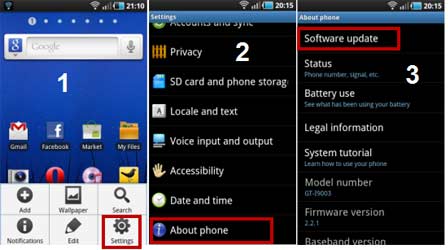
Samsung brings again a "better system stability," and it is only used for branding free devices. If the have not updated your firmware, you just simply look in the settings to update it. Go to Settings> About the Device> Software Update> Update.
And if you want to flash your samsung galaxy s3, go to this post: how to update samsung galaxy s3 to XXBLG8 android 4.0.4 firmware.


The size of the firmware update is about 93.89 MB you should  download on wifi and make sure that your battery is charged and at least 35%. After the update it will changes the build number on IMM76D . I9300XXBLG8 and Baseband Change to I9300XXLG8. Also in this update are reflected several partner apps that can be uninstalled by the same method.

firmware XXBLG8 bring back local seacrh

XXBLG8 Firmware update, you now have the ability to display brightness in the notification bar to change anytime you want. In addition, the Power menu has been expanded by three new buttons.

Galaxy Note For Jelly Bean Update News

And now is Android 4.1 Jelly Bean are on the way to the Galaxy note. But its still not clear when will it be released the official update for it. And as with all other Samsung phones, of course you can test android 4.1 jelly bean on galaxy note with a custom rom. The popular CynogenMod is also known as version 10 based on Android 4.1 are available on the Samsung Galaxy note.

But even with the CyanogenMod 10 Android 4.1 for the Galaxy note, it is of course only a preview version. And this is obviously not suitable for everyday use experience. Because this is a first port and it still developped by the developers team, this course requires much more fine tuning before Android 4.1 cleanly and smoothly on the Samsung Galaxy note runs.

Therefore, there are still some functions that work on this Android 4.1 preview but on the Galaxy note still not work properly. These include FM radio and also with the Android 4.1 introduced "Project butter" is still not on the Galaxy note. Until a stable version are finished will probably still take a few weeks into the country.

ANDROID 4.1 ON THE SAMSUNG GALAXY NOTE
android 4.1 on galaxy note

And if you also like Android 4.1 and want to try it on this Galaxy note, can find detailed instructions for flashing the phone. But For those who have no idea of the matter how to flash it, there is a simple way, just wait and let the samsung team work and wait them until they release the official Samsung update. And if everything goes well, this could even released shortly.
maybe you want to try android 4.0.3 ICS for your note, it is the most stable version for android4.0.3, you can see here how to update galaxy note to XXLQ2 firmware version
If you still want to flash your galaxy note to android jelly bean. just stay tune on this tutorial for android blog. Maybe tomorrow i will share it. :D

UPDATE
There are alrady released the fimware feak for galaxy note. read galaxy note jelly bekan firmware leak

How To Setup And Configure Google Now

In a previous of couple weeks ago i have discuss in this blog about Android Jelly bean new features. and on that post i have mentioned if the new features that most wanted on jelly bean is google now. And today i will tell you How to setup Google Now which is one of the most highlighted features of Android 4.1 Jelly Bean. So you must have a question on your mind, what is Google Now and how to setup or configure it? Check out my answer below.

What is Google Now

Google Now is an application that created to answer your questions and support them through search results. I can sat that Google Now is an application to automate your life and make it easier. Although it is just an application but it is very usefull
what is google now

Google Now can tell you about the weather, so when one day you will come out google now can tell you the weather before you going outside. It can tells you how much traffic on the street. its very usefull to expect the jam on the traffic so you can choose the way if you want to go anywhere without trapped on traffic jam. this apps also can tell you when can you get next train or plane while you are on the platform or airport area. And Amazingly Google Now can tells all those things automatically on your smartphone which appear throughout the day whenever you need them.


How to Setup Google Now

How to setup Google Now is not a very complex question. so please read my insctruction to setup google now
To setup it, first launch the apps. Google Now can be launched by 2 methods, you can laundh from the lock screen by swiping towards the Google icon. or the 2nd methods is by swiping up from any of your soft keys.
how to configure google now

If you were in the first time launchine google now. just tapping through the welcome screen set up.
Then Scroll down and then menu button its present in the bottom right corner. Once you tap the menu button it will launch Google Now/Voice Search Settings. then tap it customize your cards.
:how

If you want, you also can view some sample cards and configure it from Google Now home screen. to do so, you just simply scroll down to the bottom and then tap on “Show sample cards”.
tutorial configure google now

If you you want to customzie it later and just want to know the taste of Google Now then you just leave the settings to default. After you are finished setup the cards, you need to fill it with some data. to do so, you can use Voice Search and then search for your weather, favourite sports team, place for hangout or anything that related to the sample cards.

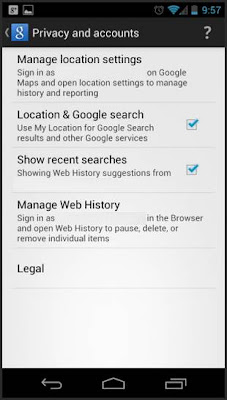
If you curious and want to get full benefitted then go back to Google Now settings and go to Privacy accounts. You can find that in default mode all of the settings are checked.
Google-Now-Privacy-Accounts-settings

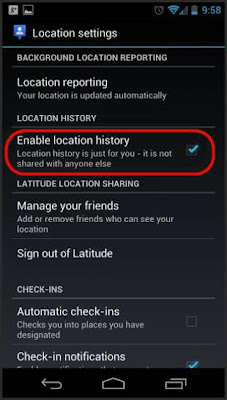
To manage your map setting Tap o Manage Location Settings. To get the best experience, check the option for “Enable Location History”.

google now location history setting

To activate your Google Now apps in identifying your home and work address correctly, go to Location History in there you will get the option, it the option you must configure your home and work correctly.

OK, now your Google Now apps is fully enabled and ready to show you some cards. You will start getting cards for work/home distance, weather today, and other locations thfat you have set. If you still interested in any other cards, then you just use Voice Search that i have told previously. It will help Google Now to understand that you are interested in those cards also. And Google Now will keep on cellecting information as soon as you put new setting and information.


Google Now Tips and Tricks


  • When once your Cards closed or swiped away from Google Now or notifications are not gone. dont't worry. They will reappear as soon as if there are a change on the data.
  • But if You want to make the cards reappear without wait a change on the data, just simply tap the menu icon at Google Now and then tap on refresh button. But if you still face the problem, then turn Google Now switch off, reboot your phone and then re-enable it.
  • If you want to configure Google Now to notify you when to leave so as to arrive on time. Just go to your calendar, then just add locations.
  • To improves Google Now functionality. You can do it by enabling web history immensely, and you control its setting from – www.google.com/dashboard

Download Nexus One Click Root Toolkit - Unroot

Hi all. today i want to give a good news for you. for you that have a nexus s smartphone now you can Root, Flash, Unroot, Back up & Recovery in just one click using Nexus Root Toolkit software. we all know that if you want to root, or we just usually called flashing process in your smartphones usually need much time and you must be carefully do the step, because if you very careless when you do the step you will brick your phone.
But now you can do flash, root nexus s, unroot, your Nexus Smartphone more easily, you can use this Nexus Root Toolkit. this tool will allows you to root and Unroot, restore, back up, lock and unlock the bootloader, flash recovery images of the system, etc. just with some clicks. It's so easy and more save than using another method that have more risk for your device.

Screenshot :
nexus root toolkit


Download Nexus One Click root tool kit

How to use of this root toolkit is easy, and it is requires no complex step which requires you to move trought complex move and instruction. Just download Nexus Root Toolkit, install it on your PC and follow these steps:

  1. First, Make sure that the USB debugging is enabled on your Nexus 7, to activate go to "Settings> About Tablet".
  2. Root Nexus Open Toolkit and select the firmware. please notice If you are doubt with the model pudes check from "Settings> About Tablet".
  3. Select the device model and then connect the device to the PC.
  4. Once connected, click "OK" and select the option you want to perform from the user interface.


Thats quite easy right?? stay tune to this tutorial for android blog to get more android news and tutorial. see you :D

How To Do OTA Update On Android Phone

Upgrade firmware Android OS using method On The Air (OTA) is one of the options for upgrading the devices using the android operating system directly from your phone. or it could also use another way, that is through the Service Center means users coming directly to the vendor that supplied service office. Another way to upgrade firmware android OS is to use the Manual PC Suite or Desktop Manager. See an example tutorial update galaxy ace to jelly bean or tutorial update galaxy ace 2 to ICS.
But many users are still like to upgrade firmware directly via the Android OS gadgets, smartphone or tablet. but It may just have to pay attention to the speed of internet users are used. because it will need a long time to do update if your internet connection is slow.

tutorial how to do ota update

Ok, Now lets begin the tutorial how to do ota opdate on android phone. please read the intruction step by step :
  1. Go to Menu Settings - About Phone
  2. Open "System software update".
  3. next check first whether your android mobile phone are already available software (firmware) version of its updates. Please click "check now".
  4. If it's already available versions of firmware updates for your smartphone then the system will automatically connect to the server to download software and install to upgrade to a new OS firmware.
thats it. if you confuse or want to ask some question just comment. and don't forget to like our fanspage android news and tutorial. see you in next tutorial :)

How to Download Youtube Videos On Android - Easy Way

hii how are you today?
at this moring i will share tutorial how to download youtube videos and save it directly to your android smartphone. This will be very useful when someday you watch a video on youtube and you want to save a certain video that you want to watch at a later day without having to wait for streaming over the internet again. and to download the videos from youtube is also the best way for you to save your money and your time. because you don;t need to connect to internet to watch the video. so now come on Follow our step-by-step instructions below to get started.

Follow This Insctuction
  1. you need ann apps that calles tubemate. so first download tubemate from google play.download video from youtube on android
  2. Now click on the .apk file and install TubeMate.
  3. After you have finished install tubemate, Open the TubeMate appinstall tubemate
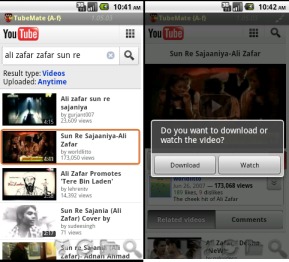
  4. Select a video (or search for a specific video of your choice)
  5. Once you get the video, tap on it and click the “Green down arrow” icon to download the videodownload youtube videos via android
  6. Then A popup will appear with 2 options, then select “Download” (As shown in pic).download youtube videos via android
  7. Then Another windows will pop up and asking you to select which is the resolution that you want to download.
  8. After choose the resolution, then download will start


That's it tutorial download youtube videos on android. now just wait your download process finish and then you can Enjoy YouTube videos on your smartphone anytime you want. see you in another tutorial install jelly bean .

Samsung Galaxy S3 Graphic Sells On 2012

We know that Samsung on Mei 2012 have been released The latest Samsung Smartphone. this Phone is called as Samsung Galaxy S 3, and now it is have been sold for over 10 million sales in less than two months after going on sale. and that news is beyond what was expected by Samsung it self.

The results are an absolute dream for Samsung. If you consider that the Galaxy S3 in many countries until mid-June came on the market and then also the blue of the Galaxy S3, delivery delays, then this is absolutely amazing. Samsung reported that the Galaxy about S3 190,000 copies are sold daily.

how many samsung galaxy s3 have been sold out

This one has beaten the sales success of its predecessor significantly, that is Samsung Galaxy S2. For this model, if compared we still need double time than the galaxy s3 to sell 10 million copies. This Samsung has probably more convincing the status as the largest smartphone maker in the world continued to strengthen. It is therefore not surprising that Samsung made ​​to new record sales and profits.
Samsung now counts itself as the biggest smartphone manufacturer in the world, becoming the chief rival to Apple in terms of sales and demand for devices.
samsung galaxy s 3 sold about 10 million

It is now more exciting to be predicted, how many Galaxy S3 will be sold out in the coming months?. If so, the sale continues, then probably about 40 million by year-end Samsung Galaxy S3 will released to the customer.

How To Update Galaxy Tab 10.1 To Ice Cream Sandwich

Samsung has not officially release the official ice cream sandwich update to Galaxy Tab 10.1. In The Past They had announced that it very difficult to run android ICS mixed with their touchwiz in Galaxy Tab 10.1 hardware. The Galaxy Tab is prebuilt with Android Honeycomb or known as android 3.0 . but i think iw would be better if galaxy tab had ICS ROM on it.
So now samsung have been give announcement that they promise will release ice cream sandwich for samsung galaxy tab 10.1. but it is not clear that when galaxt tab 10.1 will updated to ICS.
but for you that really curious and want to try ICS on your galaxy tab there is a unofficially way to get ICS update for your galaxy tab. just follow the "tutorial how to update" that i will mention below. because Samsung Galaxy tab was equipped with a 1 GHz dual core processor you do not need to worry, because This is powerful enough to run this custom ICS firmware.

and in this update we will use cyanogenmod9 as the custom rom. CyanogenMod are fully ripped, fast performing and efficient custom ROM build by developers. Now, Galaxy Tab 10.1 3G users can install Stable CyanogenMod ROM manually on their device.

READ FIRST
  • Do with your own risk. We shall not be responsible for any damage to your device or data loss.
  • Keep the battery fully charge while updating. A minimum of 70% charge is required.
  • Enable USB Debugging in your Galaxy Tab from the path “Settings > Applications > Development > USB debugging”. then the option of USB Debugging should be checked.
  • You should backup all your data on your device.


READ SECOND
To do This update you must have root acces to your galaxy tab. see tutorial how to root galaxy tab 10.1


To Install update you mus use clockworkmod recovery. because you can't use the recovery from the stock ROM

Tutorial Install ClockWorkMod Recovery on Galaxy Tab 10.1


  1. Download this both files and save it to yoor computer/laptop :Download Odin Flashing Tool zip .Download Recovery Tar .
  2. Then Extract the Odin zip file. after you extracted it you will find odin.exe in the folder.
  3. Run Odin application and Reboot your Tablet, then enter your galaxy tab in Download Mode. To do it, just press and hold the Volume Down + Power buttons together. Release the buttons after few seconds and then press the Volume Up button to enter into Download Mode.
  4. Then, connect your galaxy tab to your PC via original USB cable. Once your galaxy tab is connected then you can see yellow color in ID:COM field. That means your device is successfully recongnized by the Odin application.
  5. In Odin, click the “PDA” button and then select the file named “recovery.tar.md5” from your PC that you have downloaded before.galaxy tab odin flash clockworkmod recovery
  6. Then, click on the “Start” button to start the flashing process of the CWM. The flashing will complete in a few minutes and your device will be rebooted automatically.


How To Update Galaxy Tab10.1 To Ice Cream Sandwich


  1. Download below both zip files into your PC.Download CM 9 ROM latest package(The file name is cm-9-20120702-NIGHTLY-p4.zip, The size is 134MB)Also Download Google apps .
  2. Then connect your Galaxy Tab to PC use USB Data Cable. Then Copy both files that you have download in the step 1 into the root directory of your tablet SD card.
  3. Switch off your galaxy tab and enter into Recovery Mode. just press and hold the Volume Up + Power buttons together for few seconds. When the screen turns on release the power button but keep holding the Volume UP button.
  4. after you entered in recovery mode, then you must delete all your phone data for get the perfect rom working. to delete it select the ‘wipe data/factory reset’ and ‘wipe cache partition’ to wipe all your cache data, select Yes to confirm. Once again, select ‘Dalvick cache’ under Advanced option.
  5. Then from the Recovery Menu select “install zip from sdcard” then select “choose zip from sdcard” and then choose the CM 9 ROM cm-9-20120702-NIGHTLY-p4.zip file(the file that you have downloaded in step1) from SD card that you've placed before.how to update galaxy tab 10.1 to ice cream sandwich
  6. After you have finished the flashing preocess of the ROM, flash the Google apps package by the same method as that of flashing the ROM.


FINSIH! Now you have successfully install ice cream sandwich on Samsung Galaxy Tab 10.1 with cyanogenmod 9 custom rom. please give us feedback if you have any problem, we will try to give the answer.

Best Siri Alternative Apps For Android Phone

Do you know what is SIRI?
I think most of apple users must have already known about what is siri. Apple siri is an application that can interact directly with you, siri can reacts with what you order, siri will recognize your order from your voice, and this apps will do what you have order. and now there is a lot of application that works with siri. such as : reminders, stocks, weather, email, messaging, notes, contacts, clocks, calendar, music, web browser and maps.
you just can simply ask Siri to do anything just by talking, and from the way you talk the Siri can understands what you say, knows what you mean, and even talks back.


Best Siri Alternative for android

At the first time i know about siri as an android user i am very impressed with those great features. and i have to admit the fact that im jealous
when someday I saw my Friends playing with their Siri voice assistant on their new iPhones.

but now not only the apple users that the one who can
enjoy siri, because now android have already release apps that similar with siri. it is an siri alternatice for android.

There are a lot of Siri alternatives available in the Android Market / google play store and you can find that most of them are free too. Here is some collection of top FREE Siri alternatives that I found best.

Vlingo Virtual Assistant

Vlingo is one of the best voice-powered Virtual Assistant on Android. it will complete an action you’ve told it to do and this apps is highly recommended by most of Android users. Some even claim that Vlingo is more powerful than Siri in term of usability, capability, accuracy and speed.
best siri alternative


It can voice dial, open apps, get directions, send text and emails, search the web, find local shops, buy movie tickets and book hotel rooms, update FaceBook or Twitter status etc. The thing that I liked the most is Vlingo is the “InCar” feature. this features will let you make calls and send messages without even touching the phone. Just say “Hey Vlingo” and it responds to you.
Download Vlingo Virtual Assistant for android

Speaktoit Assistant


Speaktoit Assistant is a brilliant voice assistant for your Android device.It is another Siri alternative for Android with the image, name and everything. there is a feature that i like on it, you can deesign the look of your assistant. She/he can have different color hair, skin, eyes, clothes etc. You can even change assistant voice instead of robotic Android voice.
download siri alternative


this assistant will serve you to answer questions, launch apps, find information and connect you with various web services, such as Google, FaceBook, Twitter, Foursquare, Evernote, and many others.

Download Speaktoit Assistant

Iris

Iris is yet another attempt to replicate the voice assistant application for iPhone. yea you can directly judge it if it is an siri clone from its name, its just the reversal from that name.

download iris apk

Its features include making calls, texts messages, play music, searching the web, , watch videos, finds news andmany more. Iris also can server you to search on various subjects like history, art, biology, literature, journal etc with ease. but bofore you can use iris, you need to install first “Voice Search” and “TTS library” in your phone for iris to work.
Download Iris for android

TopVoiceControl


Top Voice Control is An amazing free voice assistant app for Android with text-to-speech feature. its also use natural language processing. from the interface you can see that It has a very user-friendly interface to show all the commands, so that you can speak to Android phone easily.
download top voice control

The Features of this apps including number dialing, service enabler, application launcher, text-to-speech. and more.
Download TopVoiceControl for android


EVA Intern

Eva using voice recognition and text-to-speech technology, it will to turn your android phone into a completely hands-free powerful device. its also known as one of best siri alternatives for android. The features that i like most id you can activate EVA by just shaking your phone.
eva intern for android


the features of EVA such as making calls, managing contacts, contact groups, lists, calendar, making memos, announcing incoming calls, mapping addresses and locations, starting applications, loading web pages or bookmarks, getting basic stock quotes, etc.
Download Eva Intern for android

Ok that's it my review for android siri alternative. see you in next tutorial for android post. if you want to ask or you have some question please comment.

How To Download Apk From Google Play To PC

good morning everyone, in this post today i want to answer a question that often asked from my blog visitor. it is about how to download apk files from google play to PC. but before i give the tutorial i will explain the chronologycal from this post so that you will not confused.

for owners of Android gadget would have become a habit to search for android applications, android games, and android widgets. either it is free or paid, and usually you are download it from google play store.
when you are browsing with your Android phones it is easy, you don't need to confuse when you want to download the three types of application above, but how can if you want to download the apps on Play Store when you are using a PC or computer? What steps should you do to get the APK from the Android Market to PC?
and now i will give the answer how to download apk from google play store
and this tutorial that i share is the way that i often use to download apk from paly store if i was online using my pc or laptop. maybe this tutorial rather different from another tutorial but i have proved it, and this is works, are you curious? now lets go ahead to the tutorial.

REQUIREMENTS
PC / laptop or computer are connected to the internet.
you must have Real Apk Leacher. Download Tool Apk Leacher
you must have java runtime environtment 1.5.0. download here

Do you have prepare all the requirements? if you have benn do that, lets go to the next step

Tutorial How To Download Apk From Google Play To PC

  1. After you successfully download Tool Real APK Leecher above, please extract it and go inside you'll find one. Exe file named Real APK Leecher, please run the file (make sure you have download the Java Runtime Environment / JRE 1.5.0 if you have not already download that, it will automatically download the JRE 1.5.0 first).
  2. To use this tool, you need enter your market account and Device ID.
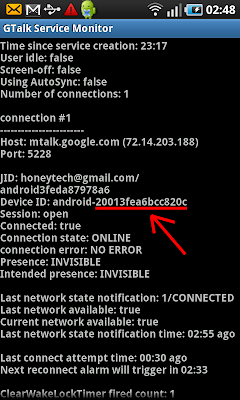
    For the first time Real APK Leecher option will display three lines that you have to fill, that is email, password and device ID , To get your Device ID, just simply open dial pad, press *#*#8255#*#*. If it opens “GTalk Service Monitor”, find lines that begin with JID and Device ID. Your gmail account is JID, and your device id is a string that after android- prefix Please see the two pictures below:
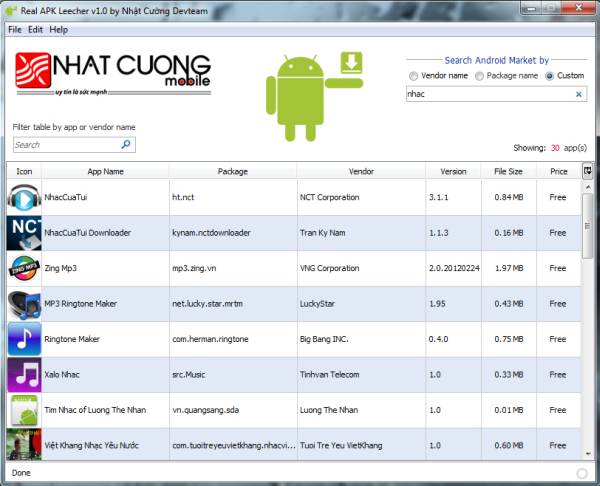
    how to download apk from google playtutorial download apk from google play store
  3. If the option that you must fill had been completed, then the next will open interface Real APK Leecher, the next step please find the application / game / theme that you want on column Android "Android market by search" you can choose vendor name, package name or custom, after you enter the application you seacrh then it will display the applications that you typed before, wait a moment so that will appear suite of applications you are looking for earlier. The way to download : click the application you want to download (click the row so that the color become blue) right click (there are three options download this app, download the app icon and the view on google play.apk download tutorial from google play


UPDATE
if those tutorial didn't work for you go to this tutorial, but this step is rather complex then above, paste this url to your browser http://adf.ly/EOJEC.
I have tried it and it is works great!

Thus tutorial how to easily download APK Google Play to PC that I often use, but please keep in mind Real APK Leecher that download this app command will only be active if the application is really free, to download paid APK from Google's Play for PC you must visit the play store directly. see you in next tutorial for android.

How To Root Google Nexus 7 Tablet

After the Google nexus 7 officially released by google on google I/O 2012, this tablet become the first tablet that first used android jelly bean which it is directly installed on it. and for you that search the tutorial how to root galaxy nexus you were in the right place. because at this time i want to share the tutorial with the most complete instruction. Please notice that once you root your nexus, this device will lose the warranty. The only way to get back the warranty is revoke the root acces and by re applying the original firmware.

This tutorial below will give you how to unlock and root Google Nexus 7 Tablet.

If you do not know what rooting is, Rooting is process which will gives you super user acces over your phone. You can install custom ROM’s like Cyanogenmod,MIUI etc. and do some cool customization more.

root google nexus 7 tablet


READ FIRST
Please follow all the below instructions that i mentioned carefully to make sure that the Nexus 7 is rooted successfully. Please check your battery. Minimum battery life should be 60% plus to make sure that your phone doesn’t get turned Off in the middle of process.

READ SECOND
do with your own risk. we are not responsible for any thing that happens to your phone in the process.


Pre Requirements:

First Back up all your phone data. For backing up SMS,call logs,Gmail,Google calender you can use: SMS Backup +
Enable USB debugging on your nexus 7 by going to ” Settings > Applications > Development > USB debugging”  where the USB Debugging option should be checked.
You need to have Android SDK installed on your PC. Download
Download Clock Work Recovery(CWM).
Download rooting package.
Place the CWM as well as rooting packages(super user) as it is in the “platform-tools” folder in “C:/Android” folder. Once placed, then open the command prompt in your computer by pressing the “Win + R”, enter “cmd” then push enter to start the command prompt.

To make this easier, you should put the su zip on the sdcard for later.
-In terminal, cd to the directory you have your sdk in. Then cd into platform-tools.


How To Install Clockworkmod Recovery on nexus 7 tablet

  1. Connect your Nexus 7 tablet to your PC and enter bootloader mode.
    then type
    adb push path-to-zip/JB-SuperSU.zip /sdcard
  2. enter the below mentioned commands as it is one by one after the command processes the device,
    cd platform-tools
    adb reboot bootloader
  3. wait for a second
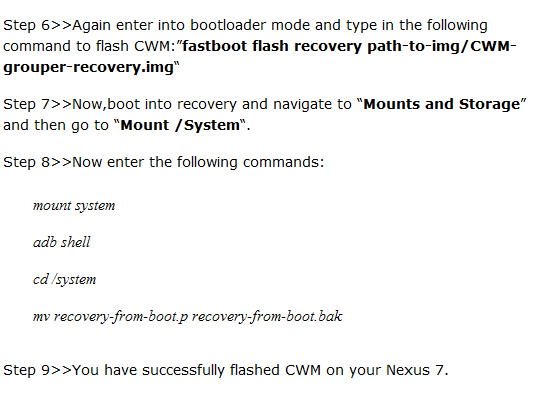
  4. Now type the following command:”fastboot oem unlock“. then select unlock to unlock nexus 7 tablet
  5. you now need to enter the Nexus 7 in the recovery mode so that the clockworkmod recovery mode can be flashed in the device.
how to root google nexus 7 tablet

How to Root Google Nexus 7 Tablet

  1. First, Place the rooting package(JB-SuperSU.zip) that you downloaded above in the root of your SD card.
  2. Now turn off your device and then boot to recovery by pressing Volume Up+Volume Down +Power buttons.
  3. then navigate to “install zip from sdcard > choose zip from sdcard > JB-SuperSU.zip“.
  4. After the flashing is complete select “reboot system now“.
  5. Congratulations.. You now have successfully root Google Nexus 7 tablet

see you in next tutorial for android. if you want to ask anything please comment

Download The Best Web Browser For Android

Do you know what is the best browser for android? read this article so you can decide what is the best broswer also you can download the browser in this post.
There are dozens of web browsers in the market for google play and supports your choice of a browser on the features available by, the example: some of which has the advantage of sync with the desktop of the computer, and some features high-speed browsing, or support for Flash, you have many options from which to decide, some of those program is popular, and the other the contrary, in this report we will take a light on Five of the best browsers for Internet Private android system:

the best web browser for android


Firefox


Firefox version Balandroed offers a lot, especially after the issuance of the previous beta version, what makes it different is its speed, Firefox fully supports synchronization with the release of Firefox for computers (PC) such as bookmarks, your passwords. It Is the first browser for smartphones supports browsing hidden and do not follow, start page an excellent where the buttons show you all the help and other tabs that you open to be able to return to what they were before the window now closed. Firefox supports plugins despite the fact that there is not much of it until now. and it Has several versions


Chrome

chrome for android


it is Chrome for Android and finally our product came out late last month, of course you can use it if the version of your Android 4.0 Ice Cream Sandwich or higher. If you are running ICS or the new version of Android 4.1.1 on your machine you should you try Chrome. Chrome supports browsing daemon, supports kinds of synchronization by "synchronize chrome", and supports the synchronization search, synchronize the tabs and can be synchronized Chrome on your desktop, Chrome is considered the best system Android, the only downside that Google did not make it available to issue honeycomb or Ginger.


Dolphin Browser HD / Mini

dolphin browser for android

Dolphin Browser is the best browsers for many reasons, you can add a number of features to the browser to fit it to your specific needs, whether that be automatically filling in passwords, blocking ads, adjusting the brightness of the page, full screen the browser, add a speed dial page, and more. lots of extras excellent and conversion tool speech to text and direct translation comes Bosaddaran: issuance of high-resolution HD hardware high-speed and precision, and a copy "mini" to other devices, we recommend that everyone try this browser. Has several versions of


Opera Mini


If you love opera and use Web calculators (the computer), this customized version of the phone Alandroed will suit you perfectly. Opera Mobile supports "Opera Link", will enable you to synchronize your bookmarks and Speed ​​Dial, and preferences of other user of your computer to your. Otherwise , Opera Mobile fast and free, and the pressure data in the background so you can surf your favorite sites without being afraid of the cost of downloading data in case you are use of the network 3G. Opera browser has a lot of extras for the browser and for games that make it more fun to use. Has several versions of


Boat Browser

boat browser for android

Boat Browser is one of the first Internet browsers in the early days of the launch of Android, it supports plug-ins, and has a strong voice search (so you can say to him "Facebook" and the browser will open a Facebook fast). And T can be specifically Home and quick access to favorite sites and is characterized by rapid review of the video on YouTube. Comes Bosaddaran full and miniature.

source: himanco.com

The Best Sony Smartphone

In this post i will review the best android sony smartphone in 2012
Starting from the release of Android OS by Google, the mobile phones company / vendor more and more develop Android phones with various specifications, designs, and functions ranging from cheap to expensive prices.
Thus Android smartphones popularity is increase significantly, in the community so that its market share is increasing. Other phones such as BlackBerry and Nokia is now diminishing from market share. One of these vendors is Sony, who issued a Hp applying android is one of the best Hp in the category for now.
Thus Android phone increasingly popular in the community so that its market share is increasing. Other phones such as BlackBerry and Nokia is now diminishing market share. One of these vendors is Sony, who issued a smartphone applying android is one of the best smartphone in the category for now.


best sony smartphone

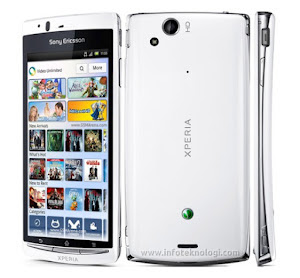
Sony Xperia Arc S
Xperia Arc S specification S:
Dual-core processor 1.4 GHz Scorpion, Adreno 205
Ram 512 MB, 1 GB internal
4.2-inch screen (480 x 854 pixels), HDMI, Android OS Gingerbread (upgradeable to ICS)


Sony Xperia S specification

Sony Xperia S
Sony Xperia S was launched to coincide with the CES 2012 and entered the ranks of Xperia series that has been stripped NXT Ericsson brand. Advantages of this phone is a big camera resolution (12MP) and also certified to play Playstation games.

Xperia specification S:
1.5 GHz dual core processor Qualcomm Snapdragon MSM8260 S3, Adreno 220 GPU
TFT display 4.3 "(1280 × 720)
1GB RAM, 1.5 GB Internal
12MP camera, HDMI, NFC, and Android 2.3 (upgrade to 4.0)

How to Install Instagram on Android Tablet

Do you want to install instagram on android tablet? you can read this article to know how to install it.
Instagram now been published for several days for Android. But not all devices can be installed on the application, especially Android tablet is left on the sidelines. We show the trick to install Instagram can work well.

I tested this yesterday Toshiba Tablet AT200 "Excite". Yesterday I installed a few apps on this tablet, to test whether it can be used well. because instagram is available for android, I will try to install it on a tablet makers android. instagram application was originally released only on selected phone models and nearly all the tablets have not been able to use it.


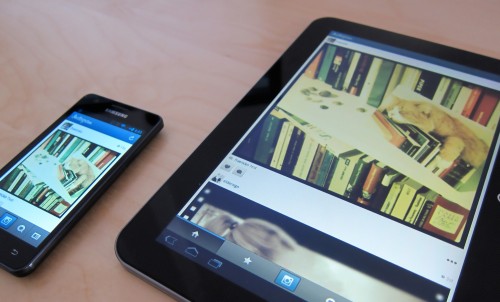
instagram on android
I do not give up so quickly: After a brief try but then I managed to install Instagram on Tablet (toshiba Tablet). The interface of the application, although not yet optimized for the tablet - functional but not at all bad. And Finally the camera from Toshiba AT200 recognized and worked with Instagram.


The real trick is relatively easy to install an application to be installed on the device that not officially supported.

we present to you the latest version Instagram APK file. Prior to the installation must be enabled sideloading, so the installation of non-market applications. For this under Settings -> Application Set check "unknown origin". Now download the apk to your device

Download: Download Instagram 1.0.2 (FAC)
Install it by clicking on the file name in the notification bar. Done!

ok that's it my post about instagram on android. If you have equipment that is not compatible with Instagram: and if you have found the another installation of this instagram with your own way? We welcome feedback - such as device name and version of Android - just give it in the comments area.

Download Galaxy S3 ROM - TurkbeyROM v3

Why need this Firmware TurkbeyROM V3?

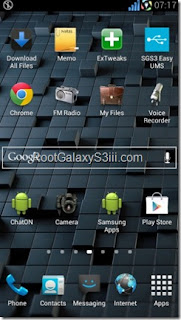
do you ever heard about this Galaxy S3 ROM? if you never heard it you can read in this post. TurkbeyROM V3 is a custom rom that based on the latest firmware S3 (XXBLBF), This ROM gives you bery much of great additional preinstall apps (such as EXTweaks, Google Chrome broswer, SGSS3 UMS Easy ,All Download, and many more) many new features and a beautiful design theme, available for the quite most alternative kinds of ROM, and positively one in every of the foremost customizable and stylish, and it's seriously quick.
To use this rom you must have root acces on your galaxy s3. we all know there are many kinds and version of galaxy s firmware in the web. so you must decide which one are match and fit with your style and which one is right for your needs. different ROMs are best for different various of users, however in this week we would like to understand that ROMs you think that are the most effective, most feature-packed, most often-updated, and best to put in, update, and manage. it is Turkey ROM V3. and you can read the guide how to install custom rom on galaxy s 3 in the end of this post.


Screenshot
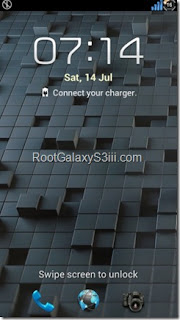
turkey rom v3 featuresturkey rom v3 features
turkey rom v3 featuresturkey rom v3 featuresturkey rom v3 features

Galaxy S3 ROM-TurkbeyROM v3 (Sony Bravia Engine, Extra Mods, Latest Firmware - XXBLFB)

This is the feature
turkey rom v3 download

that is for V1
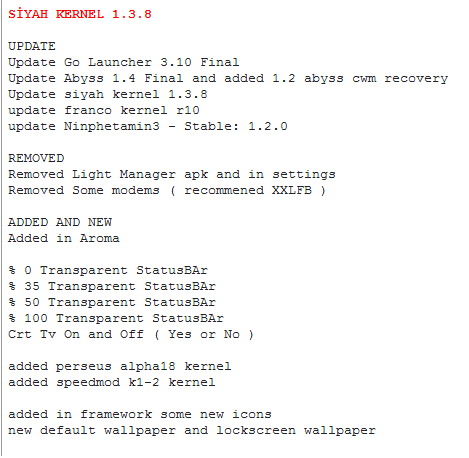
and for this V3 there are some changelog :
http://tutorialfor-android.blogspot.com/2012/07/best-siri-alternative-for-android.html

turkey rom v3 features


Tutorial How To Install TurkbeyROM V3 On Galaxy S3 GT i9300
  1. Download TurkbeyROM V3 For Galaxy S3- File: SGSIII_Turkbey_XXBLFB_V3.zip(you no need unzip this file), after download complete Then put into your Galaxy S3 external SD Card.
  2. It is Important, to do this your Galaxy S3 must Rooted and installed CWM recovery (see Tutorial how root galaxy s3 and CWM) you can refer to that link to root and install clockworkmod recovery on your galaxy s3. Skip this step, if your S3 have Rooted and installed CWM Recovery.
  3. Then Power Off your Galaxy S3.
  4. Press your Galaxy S3 Volume Up Button + Power Button +Home Button until it is boot into CWM Recovery Mode.
  5. Then Select install zip from sdcard and then select choose zip from sdcard. Select “ Yes – Install SGSIII_Turkbey_XXBLFB_V3.zip”. The installation process is start now.
  6. Now your galaxy S3 will boot into TurkbeyROM V3 setup menu.
  7. In this part, you can chose what kernel you want Kernel (abyss kernel,franco kernel,speedmode kernel,perseus kernel, or SiyahKernel S3),Launcher (touchwich, go laucher,lg home3 launcher,nova launcher
  8. apex launcher ) , Moderm (i9300xxlf5, i9300xxblfb, i9300xxle8) and addons. that you want to use. after you choose the kernel, launcher modem and addons the Press “Install”.
  9. TurkbeyROM V3 will completely flash into your Galaxy s3 within 1 minutes. Reboot your galaxy S3 once the installation Complete. That’s All!

PLEASE READ: TurkbeyROM V3 default language is not English, so to change it, go to Language and input to select language.