Pages

Pages

Download RPG Game For QVGA Android

Hello android lovers meet with me again :)
in this post today i want to share RPG Game For QVGA Android. for you that in the really like playing RPG game on your Computer or Laptop will like this game. because now you can play your favorite RPG game on your android phone/device. and you do not need to bring your big laptop or PC

do you know what is RPG? RPG is role-playing game abbreviated to RPG ) is a game that the players play the role of imaginary characters and collaborate to weave a story together. The players choose their action figures tokok based on characteristics of the character, and the success of their action depends on the game system of rules that have been determined. Still follow the rules of origin set, the players can improvise shape the direction and outcome of this game.

Download Your favorite game below

1. Download ZENONIA 3 for android
Download ZENONIA 3 for android

Download ZENONIA 3 for android

Video sample of Zenonia 3


download The Apk File Zenoid 3


2. Download Inotia 3 for android

Download Inotia 3 for android

Download Inotia 3 for android


Video sample of Inotia 3

Download Apk File Inotia 3


3. Download CaligoChaser for android


Download CaligoChaser for android

Download CaligoChaser for android


Video sample of Caligo Chaser 3

download apk file CaligoChaser


4. Download Battle Heart v 1.1.2 for android

Download Battle Heart v 1.1.2 for android

Download Battle Heart v 1.1.2 for android
get apk file Battle Heart v 1.1.2


OK thats it my share for RPG for QVGA Android see you in next tutorial for android
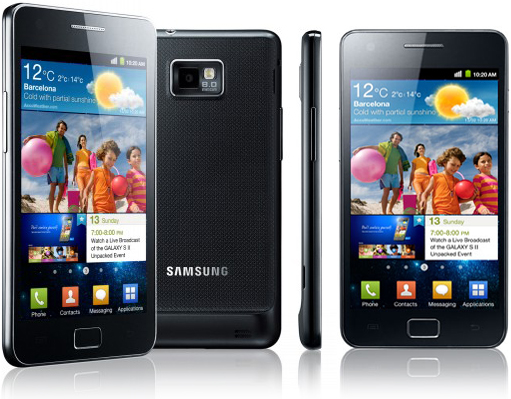
Samsung Galaxy S2 will launch Android 4.0 for US soon

Samsung S2 Galaxy I9100G finally has begun released Android 4.0 for this model, but only for in India. But the update android 4.0 For Samsung S2 Galaxy I9100G in United State the news still unclear.

Android 4.0 or known as android Ice Cream Sandwich is the latest latest Android Operating System until Mei 2012. do you know what is kind of android OS? you can read Kind of Android OS to understand it.

Finally there is also a first sign of life of Android 4.0 on Samsung S2 Galaxy I9100G. The normal the update has already received some time ago, but with the slightly modified model, the South Koreans(the Producer of Samsung) did previously difficult. But now Android 4.0 has been rolled out for this model in India.

Many users did not know they had a Samsung S2 Galaxy I9100G. They had assumed that it is just a Samsung Galaxy S2. But now they had find that someone that have Samsung Galaxy S2 get the Android 4.0 update, not only them. And because most were only realized that they had bought the Samsung S2 Galaxy I9100G. 

APPEARANCE OF THE ANDROID 4.0 UPDATE IN GERMANY UNCLEAR
update to ice cream sandwich for samsung galaxy 2


From the United States support is only ever hear that the Android 4.0 update is for the Samsung S2 Galaxy I9100G in the testing phase and we did not know when it would be rolled out. But the appearance of the updates in India makes a little hope that here in Germany could no longer take a long time.

Tutorial How to Root HTC Vivid

in this post of tutorial for android today i want so share tutorial how to root HTC Vivid. to root HTC Vivid you can use the Hasoon’s All-in-one toolkit. ok before i give the tutorial lets fist we know about the Hasoon’s All-in-one toolkit. it is a very usefull tools. the tool can flash using ClockworkMod Recovery, Unlock Bootloader using the official HTCDev site, flash Holicakes custom kernel or the stock kernel incase you messed up your rom and want to revert to stock rom.

screenshot:

besides of the features above. it becomes easy to quickly boot your android phone into bootloader or recovery when the phone is connected to the computer via USB cable.

ok from the explanation above you should already know about Hasoon’s All-in-one toolkit. Now lets heading to the tutorial how to root htc vivid. but you must know by rooting the phone you will lost the warranty. Therefore, proceed only if you know what you are doing.


This is The Tutorial :

  1. Download the Required Files : Download Hasoon2000′s Vivid All-In-One Kit V2.1.
  2. extract the content of the downloaded file.
  3. from your HTC Vivid, Open Settings > Applications > Development and enable the USB debuggingmode.
  4. Then Connect your phone to your computer with USB cable then choose Charging mode.
  5. Run your Vivid 2.1 executable file(from your extraxted download file).
  6. If you do not have the HTC drivers installed on your PC/Laptop, select Install HTC Drivers and then click Go.
  7. If you have been unlocked your HTC Vivid’s bootloader by using the official HTCDev site, you can avoid this step.
    Otherwise, select Register at HTCDev, hit Go which will fire up the browser and open’s the HTCDev site. Complete registration there.
  8. Select Get Token ID and click Go.
  9. then you will see a command prompt where TOKEN ID will appear. Right-click on Command Prompt and select Mark. Then drag / Token ID block and right click to copy the ID token. Then Close the command prompt window.
  10. Select Submit Token ID and click Go.
  11. Then go to the HTCDev site. Scroll down to the bottom of the page paste the Token ID in the box provided. You will get email with a link to download the Unlock_code.bin file. Copy it to the data folder in the extracted Hasoon’s AIO Kit.
  12. Select Unlock Bootloader and hit Go.
  13. The phone will boot into hboot and in few seconds the bootloader will get unlocked.
  14. Now it’s time to flash ClockworkMod Recovery 5.5.0.4. To do that, select CWM5.5.0.4 in the Hasoon’s AIO Toolkit and hit Flash Recovery.
  15. Now let us get your HTC Vivid permanently rooted. To do that, select Perm Root (GB/ICS) in the Extras section and click Run.

FINISH :))
now you have the super user acces, now you can install all application what you want. Enjoy :)

ok, that's it tutorial how to root HTC Vivid. See you next time in anp

Tablet surface, Chameleon for Android in a hands-on (video)

Have you ever heard of "Chameleon" is? "Chameleon" is an interface for Android Tablets. It is not yet ripe for the market launch, but the developers need a little capital, U.S. $ 50,000, which just about a litle is collected. But now it has a large following.
No wonder, since "Chameleon" is produced more. And it promises so some things that were on display have not yet on a tablet. Already, the surface is liquid, and promises a completely new user experience.

Canadian design firm Teknision recently announced Chameleon, which promises to be an interesting twist on Android tablet home screens. Besides having streamlined, resizeable widgets that span a bunch of third-party apps like Netflix, Twitter. Spotify, Flickr, and others, Chameleon's signature trait is its ability to automatically change modes based on its surroundings -- hence the name. By setting up certain rules, you can set up Chameleon to shift to a different home screen layout depending on the time of day, GPS location, or which Wi-Fi network you're connected to. In short, it's a smarter version of "scenes" that you might find in various manufacturer UIs.

Chameleon is due out this August, and Teknision is using Kickstarter predominantly to handle preorders and speed up the release. Right now, they're at $31k out of a $50k goal, which is due in 20 days. You can pitch in $5 to get Chameleon before it goes public, and if you're really jazzed about the project, you can help out by providing Android tablet diagnostic information to ensure compatibility.


CHAMELEON HANDS-ON


Even a time-driven interface design is possible with "Chameleon". That means you could be up in the morning at a certain time to view the messages, and then turns the "Chameleon" interface in the working mode, and the surface is quite different, as will be shown work e-mails, and appointments.

One can say that "Chameleon" has created an interesting interface for Android and one can only hope that one day this will be available.

Top tips for converting iOS UI to Android


Making your app look like it belongs into an Android phone

Many companies are converting their iOS apps to Android nowadays. However, simple one-to-one conversion of the UI might cause problems to the potential users. 

I don't believe that inter-platform consistency between an app's different versions is as important than consistency between apps on a single platform. Not many users use multiple different phones at the same time. This post describes five simple rules how an iOS app can be made to fit into the growing Android app crowd.

1. Use top tabs
Google recommends that tabs in Android apps placed on top part of the UI instead of the very bottom.
a slide from Roman Nurik's GDD 2010 presentation


There's a very good reason for that recommendation. Take a look at the following pictures.Both of them features app called runtastic. Their Android port keeps the UI virtually unchanged and causes problems to big portion of Android users. Many Android phones have the 4 (or some 3) required Android buttons right on the screens bottom edge. Having your app's navigation immediately adjacent to the buttons will inevitably cause users to tap the navigation buttons from time to time.


Foursquare port does a good work moving the navigation tabs to higher and avoiding the same problems as runtastic has.

On the left: iOS version. On the right: Android version.


2. No back button in UI

All Android devices are required to have a back button and user's have used in using it. There's no need to add a back button to the UI. 
Don't do this:
A bit embarrassingly this example is
 from Android Central (an awesome source
for Android news) app. 

3. Use Android platform icons

Android platform provides icons for most common actions. One of them is share. Allrecepies uses an iOS icon (top right corner). There's a well established "share" icon for Android seen for example in the default gallery app. It is freely available to use in every app.

On the left: Wrong. On the right: Correct.


4. Use Android's intent APIs

One of the most powerful features of Android platform is the intent API. It allows apps to extend other apps' functionality by offering access to their features. Probably the most common way of doing this is the share function on various apps. An app can choose to share text, URL, image etc. Other apps can then register to listen to intents that they can handle. 

Apps should not implement their own interface for sharing through Facebook, twitter etc. If the app just let's the Android handle the share intent user can use their twitter etc app of choice. This way is much more convenient to users.

On the left: Wrong. On the right: Correct.


5. Consider using Action Bar

Action bar has become a single most easily identifiable feature in Android apps. Using it will instantly brand the app as an Android app. Users are used to the concept and it can improve app's usability. However, as always UI components should only be used if it makes sense.

Evernote uses Action Bar
pattern successfully

Conclusion

Simple one-to-one conversion from iOS design is usually not enough to create good user experience. However, the changed required might not require too huge amount of effort and will be rewarded byt much better user satisfaction. 


Nexus Tablet Will Releas On July 2012

For some time rumors spread that Google is also planning to bring out Android tablet, a reference model. And now it will probably soon be the extent that Google Nexus Tablet will come in July. decisively been the first 600 000 Nexus Tablet are on their way to the dealers. The Nexus tablet is to be produced by ASUS.

The cost of The Nexus Tablet 7 inch screen and built based on the NVIDIA Tegra third is only targeted with retail price only U.S. $ 199.00. the Nexus Tablet finally would be a real Apple iPad competitor. In Germany, could the Quad-Core Nexus Tablet appear for EUR 199.00. A real competitive price!

A possible release date of the Nexus tablet could be the Google I / O conference in late June, shortly after that could the Android tablet coming in to trade it for now. So you would still be on schedule, a release of the Nexus tablet had been targeted for the first half of 2012.

NEXUS TABLET WITH ANDROID 4.1?


Of course, then probably will release the Nexus Tablet Android 5.0, will not running Android aka Jelly Bean for this preiode time. however, Google Operating System will then run on the tablet, the newest version of Android is. This could probably be Android 4.1.

DOWNLOAD Angry Birds Space for all Android HVGA QVGA

The game that i am really like was finally released its latest title is angry birds space. a litle review from me : our location in space when we playing this game. and no gravity space, so this will make the game verry nice to play

this game is really addictive, although there is still half stage of this game that will coming soon because this game yet fully finished all.
I have tested at my galaxy mini, it is rather slow when first loading but at the time have entered the game it became smoothly without any lack. cek this out, you will regret it once if you have not tried this game :-D


DOWNLOAD LINK

Angry Birds space Apk (QVGA, HVGA, WVGA)

latest News For Android Updates

hii all of android lovers on entire this world. if you really like to follow and want to know about the latest Android news, developer updates, android application, games, and more you can stay follow with this blog tutorial for android. just hit the like button facebook or subscribe this blog(subscribe and like facebook button are in the right sidebar) you will get all those update news daily. because this blog are update everyday with interesting news and articles that many people talking about.


lates news for android

android nowadays is the most popular Operating System in the world. android at first is developped for smartphone OS. but now android OS also can be use for laptop or desktop. furthermore android is an Open Source operating system so that many people really like it because it is cheap :D.. but although android is an open source OS, android is a very powerfull OS there are many features, application, very good management system on it. and Android OS from day to day have been developped to be more powerfull. because many developper android in this world try to make it becamo the best opearting system

when android first released it is released with android 1.6 until know android ice cream sandwich. There are many kinds of android OS. if you want know all the kinds read this. Kinds of android OS.

like i've said in this post. if you want to know about android update or if you want to get good application and games for your android phone / smartphone just follow or subscribe this blog.


SEE THE ANDROID NEWS UPDATE HERE


screenshot for android games:

download PES 2012 for android

angry birds for androi

samsung galaxy ace 2 : get update to ice cream sandwich

With all the fuss about Samsung Galaxy Ace 3, should not be forgotten that the Korean manufacturer also has some interesting devices under the class of the samsung galaxy Ace 3. For example, Galaxy Ace 2, the dual-core, current information indicates that the update will be the ice cream sandwich


Galaxy ace had great success internationally. it is Logic that Samsung is also designed for a replacement. We have Galaxy Ace 2 was presented in February. This is supported by ST-Ericsson CPU dual-core processors with "only" 800 MHz. This, however, absolutely clear to run Android 4.0. The people of SammyHub is promo video for a small device to get hold of this moment, strangely enough, in portrait format. It is announced that the Galaxy Ace 2 in each case, will get update to ice cream sandwich.

Next, have the Galaxy Ace Samsung PLS-2 is a screen with 3.8 inch TFT 840 x 400 resolution and weighs 122 grams and has dimensions of 6.2 x 11.8 x 1 cm. 768 MB of RAM is good for this performance class, 4 GB of internal memory is fine too, especially since you can expand it via MicroSD card. This camera has a resolution of 5 MP, the battery has a capacity of 1500 mAh end. So play the Ace 2 in terms of performance in the same league as Sony's Xperia U, which is available since the weekend.

SAMUNG GALAXY ACE 2 DEMO VIDEO


Galaxy Ace 2 can be purchased commercially in the next few weeks - also with the current street price of around € 270 but still quite expensive. Consider that there is to buy the Nexus Galaxy has been put to € 300. However, the Samsung Ace smartphone Galaxy 2 is that you have to remember, mainly because the price is definitely something.

Galaxy Ace 2 or Sony Xperia U - Smartphone the lower middle class will you choose you? People will be even more exciting HTC V, although the single core CPU? Opinion in the comments.

PayPal intigration in Android


    If our app has payment option then only one thing can help us and that is paypal .Actually working with payment system is like nightmare but paypal library handles most of things ,which makes developer's life easy .
      
        For developer , we have to test our app in paypal environment but we cant use real money to test our
     app so paypal has given Testing Server which is called 'Sand Box' in which virtual money is used and other is
      
        Live server [For real money]
      
        so in our app we have three option for testing:
        =>SandBox [for testing purpose actually it is exact copy of live paypal but here you can use virtual money ]        =>Live server [it is live]  =>Library itself ,it works as server internally [not recommended for testing better use sandbox]     so Lets explore paypal library in sand box environment       (1) create account in sandbox environment      (2) download paypal library for android and add it to project        (3) test code with some modification             done!!                  Lest start.... 
        (1) Create account :-- 
    
        For  create account in sanbox  ,go to this link


 1 of 10  


      and make account .For verification ,paypal send you mail after verify it will be activated in sanbox environment        note that this sandbox user name and pwd will not work for live paypal and it is recommended that you should not use any real info in sanbox environment .                in website go to in test account tab and create your desired account     

    here three types of account is available  

       (1)Personal   [For individuals who shop online]     

   (2)Business    [For merchants who use a company or group name]    

    (3)Premier     [For individuals who buy and sell online ]         

       create one personal and one Business account for testing transaction                 after creating two account, it will show both account's information            

     for personal account id is something like this ==>> helloxyz_1300948766_per@gmail.com    

    for business account id is something like this ==>> helloxyz22_1300937866_biz@gmail.com        

        here '_per' means personal account and '_biz' means business account        

        now i hope you have created two account ....lets move to second task         

                        (2) Download Library               

   you can download paypal library from here...       

  This zip folder contains demo and jar file for developer.       

           also  you can download paypal tutorials for android here...        

                   (3) Now import project 'sample demo'[which is already in zip folder :)] to your workspace...and run it ..        

 but here we will do some modification in code ...like we will add receipt name .
                

          so first understand how this library works ........
       
       
          initWithAppID Method
The initWithAppID method creates and returns the PayPal object. You must pass in the context and the unique application ID (appID) that PayPal has provided. You can choose whether to use the live or sandbox server, or use non-networked (Demo) mode (see below).
static public PayPal initWithAppID(Context context, String appID, int server)
An example of initializing the Library with this method is:


PayPal ppObj = PayPal.initWithAppID(this.getBaseContext(), "APP-80W284485P519543T", PayPal.ENV_SANDBOX);          

        here appID is   APP-80W284485P519543T which is fix for sandbox environment but for live server it will be diffrent .here PayPal.ENV_SANDBOX ==> means we want to use sandbox server[testing server]        PayPal.ENV_LIVE  ==>> live server      

   PayPal.ENV_NONE  ==> Do not use any PayPal servers.

 Operate in demonstration mode, instead. Demonstration mode lets you view various payment flows without requiring production or test accounts on PayPal servers. Network calls within the library are simulated by using demonstration data held within the library.        

                  getCheckoutButton Method        You must get the Pay with PayPal payment button from the Mobile Payments Library. Use this method, which returns a CheckoutButton (a subclass of LinearLayout), which you can place in your application.
     

   public CheckoutButton getCheckoutButton(Context context, int style, int textType);      
  
      Example code of getting the Payment button from the Library is:CheckoutButton launchPayPalButton = ppObj.getCheckoutButton(this, PayPal.BUTTON_278x43, CheckoutButton.TEXT_PAY); 

//button size 278x43 and text on it is 'PAY'

RelativeLayout.LayoutParams params = new RelativeLayout.LayoutParams(LayoutParams.WRAP_CONTENT, LayoutParams.WRAP_CONTENT);

params.addRule(RelativeLayout.ALIGN_PARENT_BOTTOM);


launchPayPalButton.setLayoutParams(params);

launchPayPalButton.setOnClickListener(this);

((RelativeLayout)findViewById(R.id.RelativeLayout01)).addView(launchPayPalButton);  

     we can customize button like


PayPal.BUTTON_152x33
PayPal.BUTTON_194x37
PayPal.BUTTON_278x43
PayPal.BUTTON_294x45
and we can change text using
CheckoutButton.TEXT_PAY
CheckoutButton.TEXT_DONATE
         
               There are three types of payments in Paypal..               Simple payments have a single recipient. Parallel and Chained payments have multiple recipients and differ in the how the payments are split.Simple Payments


Simple payments use the PayPalPayment object which only supports a payment to a single recipient.

Parallel Payments :Parallel Payments allow you to make payments for any amount to any number of recipients. A parallel payment is created by making a payment with multiple recipients with no primary recipient. From the end-user's standpoint, a parallel payment will affect the UI by showing the details for each recipient. Contrary to chained payments, the recipients of a parallel payment are not linked together in terms of amount.  Chained PaymentsA chained payment is a payment from a sender that is indirectly parallel among multiple receivers. It is an extension of a typical payment from a sender to a receiver; however, a receiver, known as the primary receiver, passes part of the payment to other receivers, who are called secondary receivers.            Start the Library ActivityThe Library uses the native Android Activity mechanism to start the checkout flow, and to communicate completion back to you. In addition to the onActivityResult callback, you can implement PayPalResultDelegate to be informed immediately upon successful completion of a payment.


To start the PayPal payment, you must start the Library activity, using the Android method startActivityForResult. Do this when buyers touch the Pay with PayPal button (which you placed on your page with the getCheckoutButton method)


You must first create the PayPal intent and give it the Payment object. There are two types of payment objects. PayPalPayment handles simple payments, which support single receivers of payments with one transaction and a few details. PayPalAdvancedPayment handles parallel and chained payments, which support multiple receivers of payment with one transaction and with additional details, such as invoice data.In the following example, the buyer checks out with a simple payment for a single recipient:


below code is already given in sample demo provided by paypalhere you can modify setRecipient() method and put mail id  of seller's account .also you can modify whether you want shipping or not ,modify tax related calculation ,add invoice data ,,it is pretty easy ...better refer Paypal reference guide for more detail


/**
     * Create a PayPalPayment which is used for simple payments.
     * 
     * @return Returns a PayPalPayment. 
     */
    private PayPalPayment exampleSimplePayment() {
        // Create a basic PayPalPayment.
        PayPalPayment payment = new PayPalPayment();
        // Sets the currency type for this payment.
        payment.setCurrencyType("USD");
        // Sets the recipient for the payment. This can also be a phone number.
        payment.setRecipient("helloxyz22_1300937866_biz@gmail.com");
        // Sets the amount of the payment, not including tax and shipping amounts.
        payment.setSubtotal(new BigDecimal("8.25"));
        // Sets the payment type. This can be PAYMENT_TYPE_GOODS, PAYMENT_TYPE_SERVICE, PAYMENT_TYPE_PERSONAL, or PAYMENT_TYPE_NONE.
        payment.setPaymentType(PayPal.PAYMENT_TYPE_GOODS);
        
        // PayPalInvoiceData can contain tax and shipping amounts. It also contains an ArrayList of PayPalInvoiceItem which can
        // be filled out. These are not required for any transaction.
        PayPalInvoiceData invoice = new PayPalInvoiceData();
        // Sets the tax amount.
        invoice.setTax(new BigDecimal("10.25"));
        // Sets the shipping amount.
        invoice.setShipping(new BigDecimal("4.50"));
        
        // PayPalInvoiceItem has several parameters available to it. None of these parameters is required.
        PayPalInvoiceItem item1 = new PayPalInvoiceItem();
        // Sets the name of the item.
        item1.setName("Pink Stuffed Bunny");
        // Sets the ID. This is any ID that you would like to have associated with the item.
        item1.setID("87239");
        // Sets the total price which should be (quantity * unit price). The total prices of all PayPalInvoiceItem should add up
        // to less than or equal the subtotal of the payment.
        item1.setTotalPrice(new BigDecimal("6.00"));
        // Sets the unit price.
        item1.setUnitPrice(new BigDecimal("2.00"));
        // Sets the quantity.
        item1.setQuantity(3);
        // Add the PayPalInvoiceItem to the PayPalInvoiceData. Alternatively, you can create an ArrayList<PayPalInvoiceItem>
        // and pass it to the PayPalInvoiceData function setInvoiceItems().
        invoice.getInvoiceItems().add(item1);
        
        // Create and add another PayPalInvoiceItem to add to the PayPalInvoiceData.
        PayPalInvoiceItem item2 = new PayPalInvoiceItem();
        item2.setName("Well Wishes");
        item2.setID("56691");
        item2.setTotalPrice(new BigDecimal("2.25"));
        item2.setUnitPrice(new BigDecimal("0.25"));
        item2.setQuantity(9);
        invoice.getInvoiceItems().add(item2);
        
        // Sets the PayPalPayment invoice data.
        payment.setInvoiceData(invoice);
        // Sets the merchant name. This is the name of your Application or Company.
        payment.setMerchantName("The Gift Store");
        // Sets the description of the payment.
        payment.setDescription("Quite a simple payment");
        // Sets the Custom ID. This is any ID that you would like to have associated with the payment.
        payment.setCustomID("8873482296");
        // Sets the Instant Payment Notification url. This url will be hit by the PayPal server upon completion of the payment.
        payment.setIpnUrl("http://www.exampleapp.com/ipn");
        // Sets the memo. This memo will be part of the notification sent by PayPal to the necessary parties.
        payment.setMemo("Hi! I'm making a memo for a simple payment.");
        
        return payment;
    }


After Payment you will get Transcation Id in  ResultDelegate class through PayPalResultDelegate interface 
    
        PayPalResultDelegate interface having three methods:- 
        
        /**
     * Notification that the payment has been completed successfully.
     * 
     * @param payKey            the pay key for the payment
     * @param paymentStatus        the status of the transaction
     */
    public void onPaymentSucceeded(String payKey, String paymentStatus) {
        //after successfull trancation it will give pay key through which we can retrive transcation detail in future using API call 
    }
    /**
     * Notification that the payment has failed.
     * 
     * @param paymentStatus        the status of the transaction
     * @param correlationID        the correlationID for the transaction failure
     * @param payKey            the pay key for the payment
     * @param errorID            the ID of the error that occurred
     * @param errorMessage        the error message for the error that occurred
     */
    public void onPaymentFailed(String paymentStatus, String correlationID,
        
    }
    /**
     * Notification that the payment was canceled.
     * 
     * @param paymentStatus        the status of the transaction
     */
    public void onPaymentCanceled(String paymentStatus) {
        
    }
        
        
    this is end of paypal integration in android , i hope you feel very easy to grasp all those things but i recommend to go through reference given by paypal for android OS    
    
    ######## How to retrieve Transaction detail by using Pay key...######
    
    
    Lets see....
    
    For that we use paypal api call and we need belows details :-]
    
    only business and premier account user can retrieve payment details ,bcoz for that you need Api user name ,pwd and signature .those things will be provided to only   business and premier account user .
    
    
    Now put in headers below things in name


    HttpClient httpclient = new DefaultHttpClient();
        HttpPost httppost = null;
        httppost = new HttpPost("https://svcs.sandbox.paypal.com/AdaptivePayments/PaymentDetails");
        httppost.setHeader("Content-Type", "application/x-www-form-urlencoded");
    
            // Add your data
            List<NameValuePair> nameValuePairs = new ArrayList<NameValuePair>();
            nameValuePairs.add(new BasicNameValuePair("X-PAYPAL-SECURITY-USERID", "id here"));
            nameValuePairs.add(new BasicNameValuePair("X-PAYPAL-SECURITY-PASSWORD", "pwd");
            nameValuePairs.add(new BasicNameValuePair("X-PAYPAL-SECURITY-SIGNATURE", "A.ir6-ZUHAj9O5Wgkpf6YhhFFiUUKhjhK3lIEMcukxNT7zOO-fr1l")); 
            nameValuePairs.add(new BasicNameValuePair("X-PAYPAL-APPLICATION-ID", "APP-80W284485P519543T"));
            nameValuePairs.add(new BasicNameValuePair("X-PAYPAL-REQUEST-DATA-FORMAT", "nv"));
            nameValuePairs.add(new BasicNameValuePair("X-PAYPAL-RESPONSE-DATA-FORMAT", "nv"));
            httppost.setEntity(new UrlEncodedFormEntity(nameValuePairs));
            and in body content write data :--
            
            
            "payKey=AP-3TY0117788428730   { This is test key for All sandbox applications ) 
&requestEnvelope.errorLanguage=en_US"
        
        
        That is it ...you will get payment details in nv [name vale pair format].....
     I also have attached some screen shots ..for reference ..


       Some Useful Links :
-------------------------
https://www.x.com/developers/paypal/documentation-tools/paypal-sandbox-getting-started-guide


https://developer.paypal.com/us/cgi-bin/devscr?cmd=_logout


http://www.happygeek.in/paypal-integration-in-android-app#!/


https://cms.paypal.com/cms_content/US/en_US/files/developer/PP_MPL_Developer_Guide_and_Reference_Android.pdf


http://androidsnips.blogspot.in/2011/06/paypal-integration-in-android.html


https://www.x.com/developers/paypal/sandbox      
        happy coding... :)


For Sample Source